
Customer Portal Access
Lipanet Portal gives you two different ways to help a customer access service:- Customer portal login credentials — used when the customer needs to open their portal account to view their service, invoices, usage, or tickets.
- Hotspot login link — used when a hotspot customer needs a one-tap link to connect to the internet.
When to Use Each Option
Send Customer Portal Login Credentials
Use this when a customer says:- “I want to log in to my account”
- “I forgot my portal password”
- “I want to check my balance, invoices, or usage”
Steps
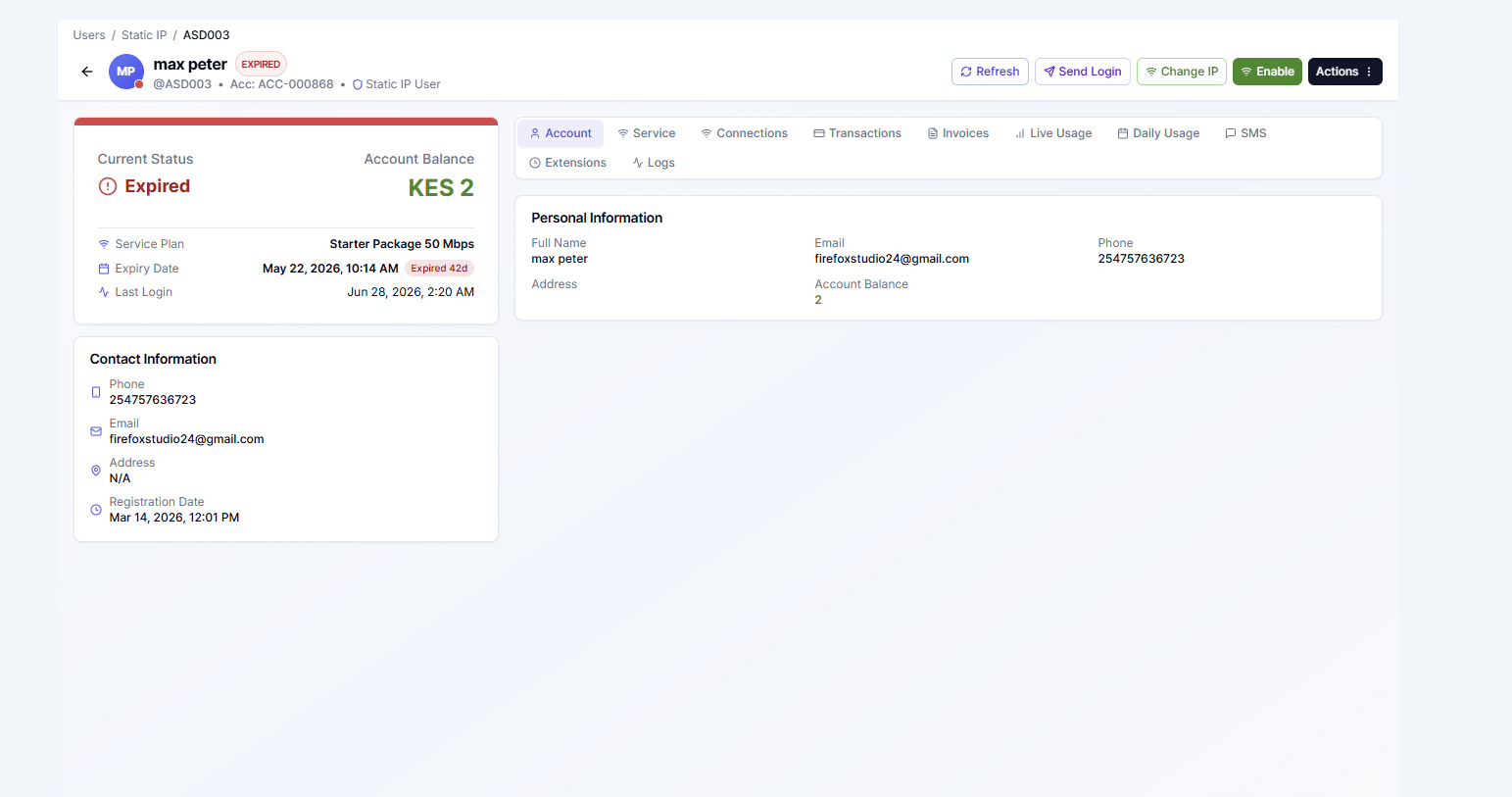
- Open the customer’s detail page.
- Find the action button for Send Login Credentials.
- Confirm the customer’s phone number is correct.
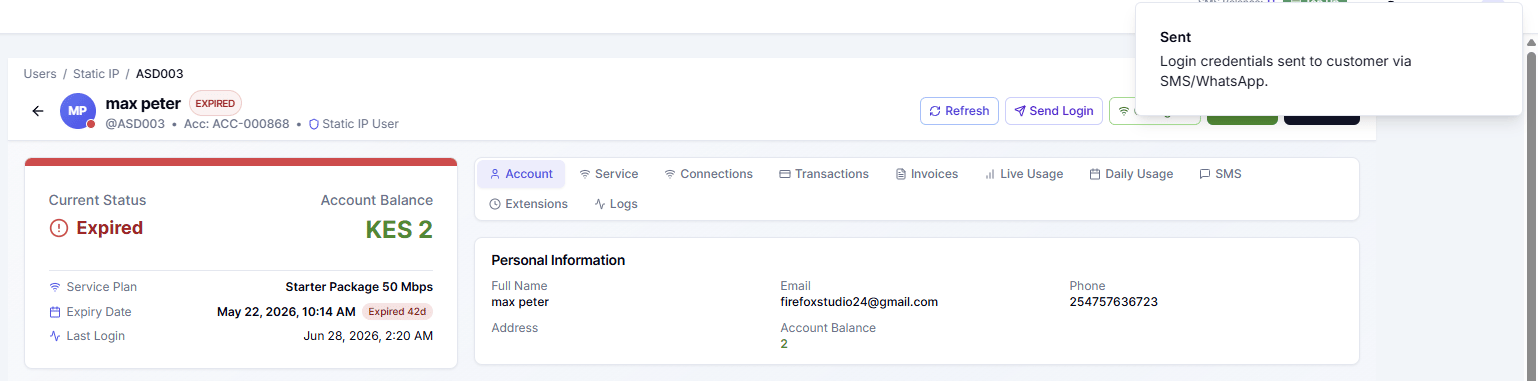
- Send the message.
- the portal link
- their username
- a new portal password
\
What the Customer Does Next
After receiving the message, the customer should:- Tap the portal link in the SMS.
- Open the customer portal login page.
- Enter the username from the SMS.
- Enter the password from the SMS.
- Sign in.
- View account status
- check invoices
- review usage
- change password
- Submit support tickets
Screenshot placeholder: customer portal login page.
Screenshot placeholder: first screen the customer sees after logging in.
Send a Hotspot Login Link
Use this when a hotspot customer needs to get online quickly, and you want to send them a direct login link instead of having them type details manually. This option is only for:- Hotspot customers
- customers with an active hotspot package
Steps
- Open the hotspot customer’s detail page.
- Click Send Hotspot Login Link.
- Confirm the phone number.
- Send the link.
Screenshot placeholder: customer detail page showing the Send Hotspot Login Link action button.
Screenshot placeholder: success message after sending the hotspot login link.
What the Hotspot Customer Does Next
After receiving the hotspot login link, the customer should:- Connect to the hotspot Wi-Fi network.
- Tap the login link from the SMS.
- The hotspot session opens using that link.
- They should now be able to browse if the package is still active.
Screenshot placeholder: SMS containing the hotspot login link.
Screenshot placeholder: hotspot page or success page after opening the link.
Important Difference
If a customer says they cannot access the portal account, send login credentials. If a customer says they cannot get hotspot internet access, send a hotspot login link. In simple terms:- Portal login credentials = account access
- Hotspot login link = internet session access
Common Checks Before Sending
Before sending either option, confirm:- The customer’s phone number is correct
- The customer record is the right one
- for hotspot login links, the customer is still active and not expired
- Verify the phone number on the customer account
- resend once
- Check SMS history on the customer profile
Screenshot placeholder: customer SMS history tab.
Related Pages
Customer Detail Page
Learn where customer actions, tabs, and management buttons are located.
Online & Active Users
Check whether a customer is active or currently connected.