Status Banner
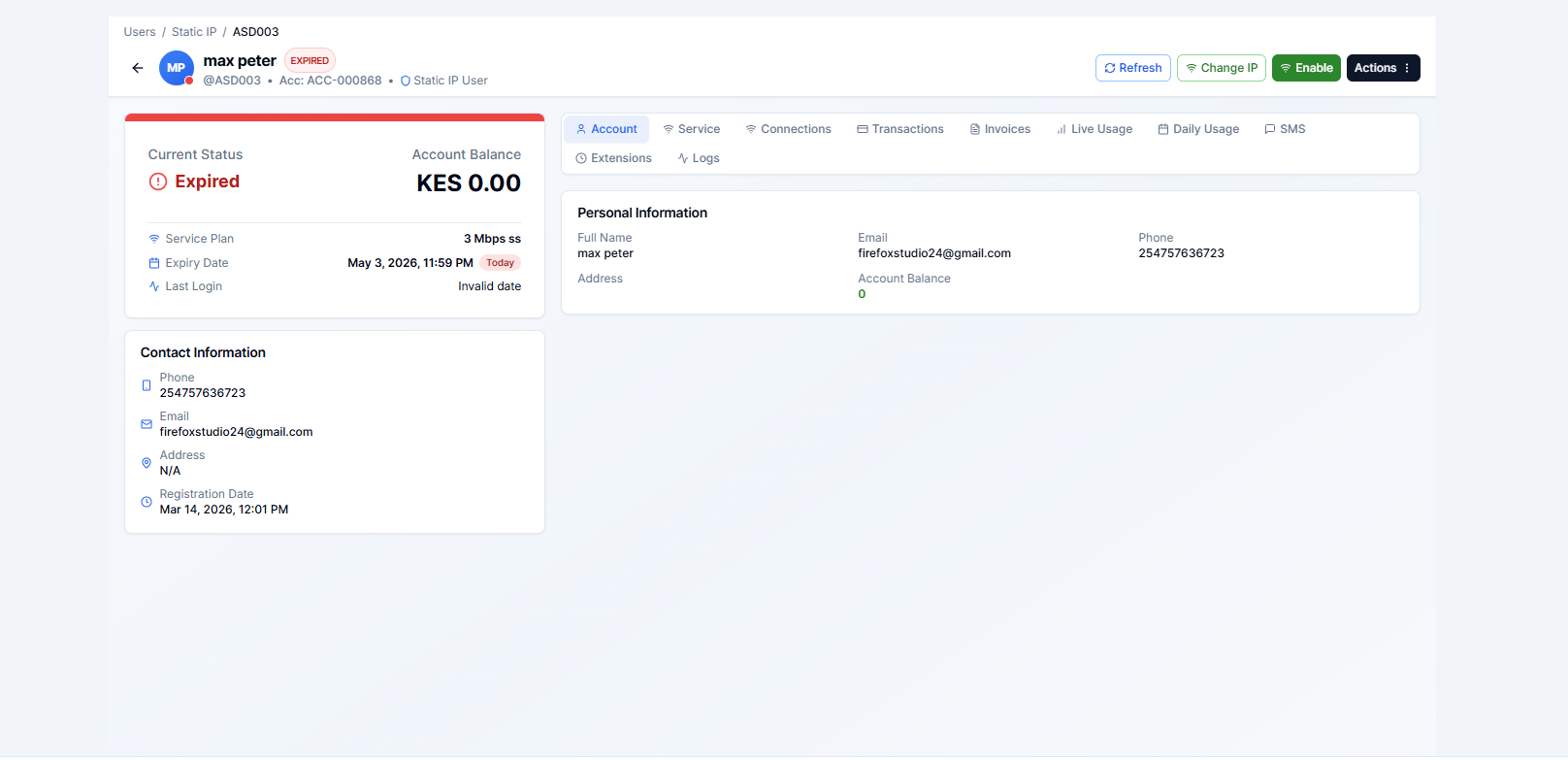
The top of the page shows the customer’s current status with a colour-coded badge:Action Buttons
Depending on the customer’s current status, different action buttons appear at the top right: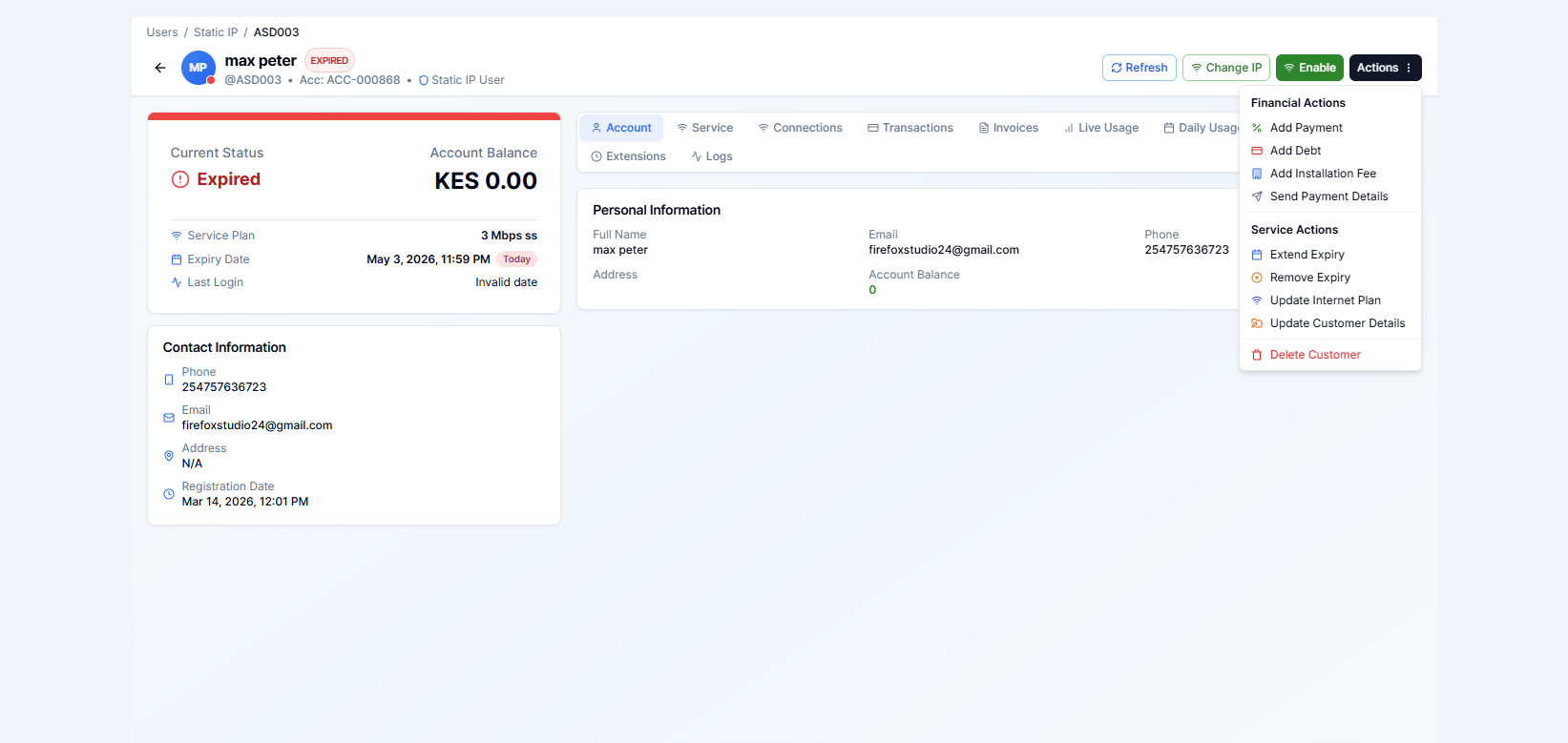
Detail Tabs
The customer profile is split into tabs. Click each tab to view that section.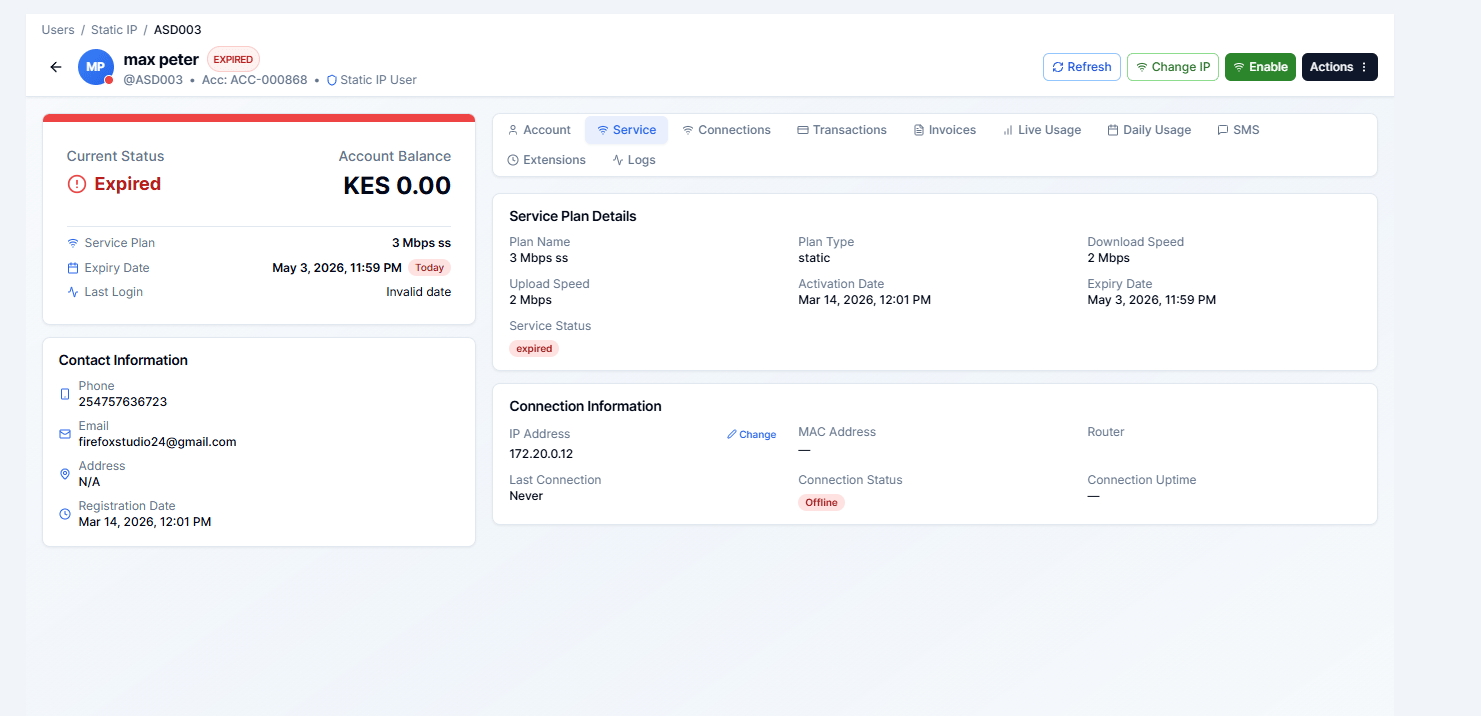
- Full name, phone, email
- Username and password (masked)
- Current plan, speed, and data limit
- IP address assigned
- Account creation date
- Update personal details (name, phone, email)
- Change username / password
- Update IP address
- Add or change the additional account number
Transactions Tab
Full list of all payment transactions linked to this customer.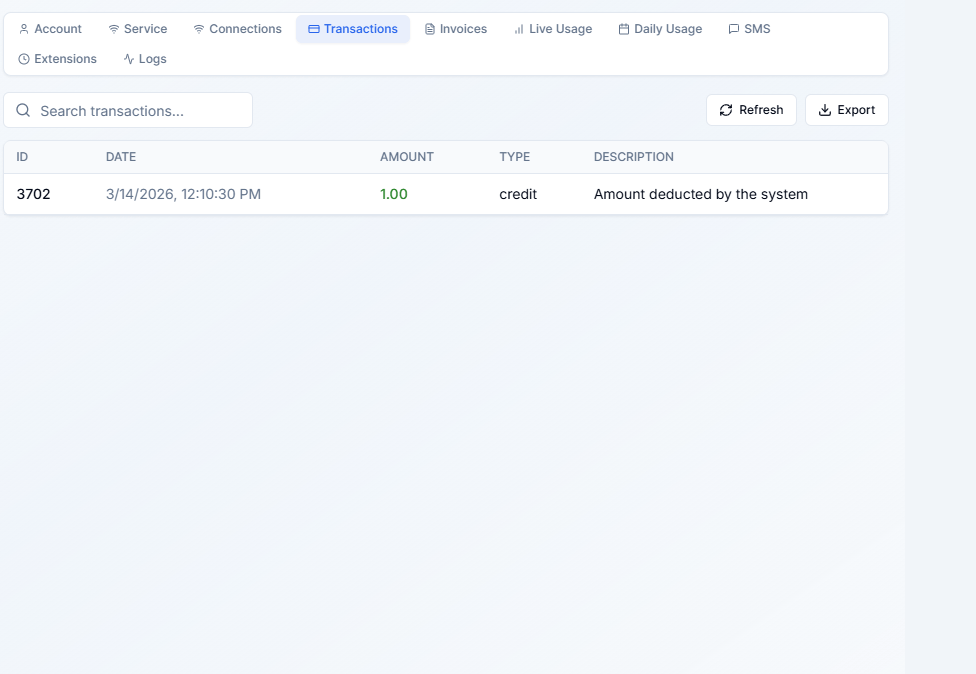
- Date and amount of each payment
- Payment method (M-Pesa, cash, bank)
- M-Pesa reference number (if applicable)
- Staff member who recorded the payment
- Balance adjustments and debt records
Invoices Tab
Shows all invoices generated for this customer.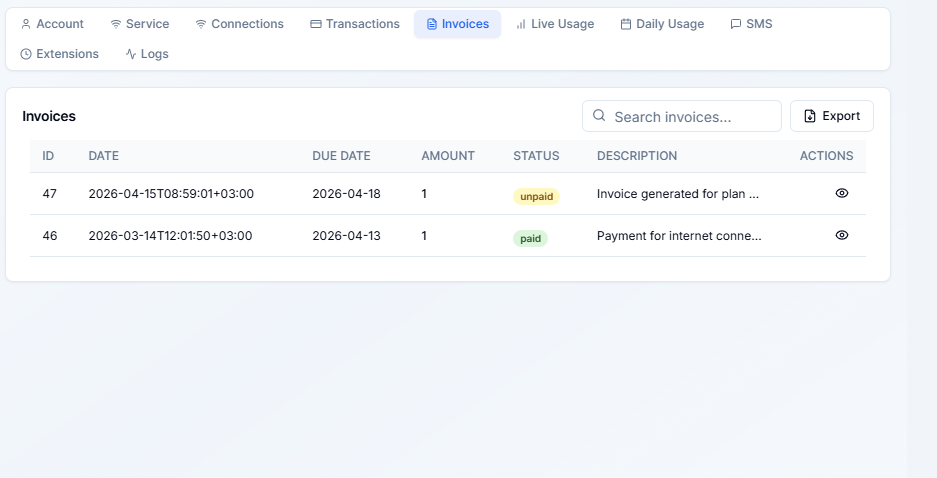
- Invoice number, date, and amount
- Status: Paid / Unpaid / Partially Paid
- Click any invoice to open and print or download a PDF
Sub Accounts Tab
Lists all child accounts linked under this customer.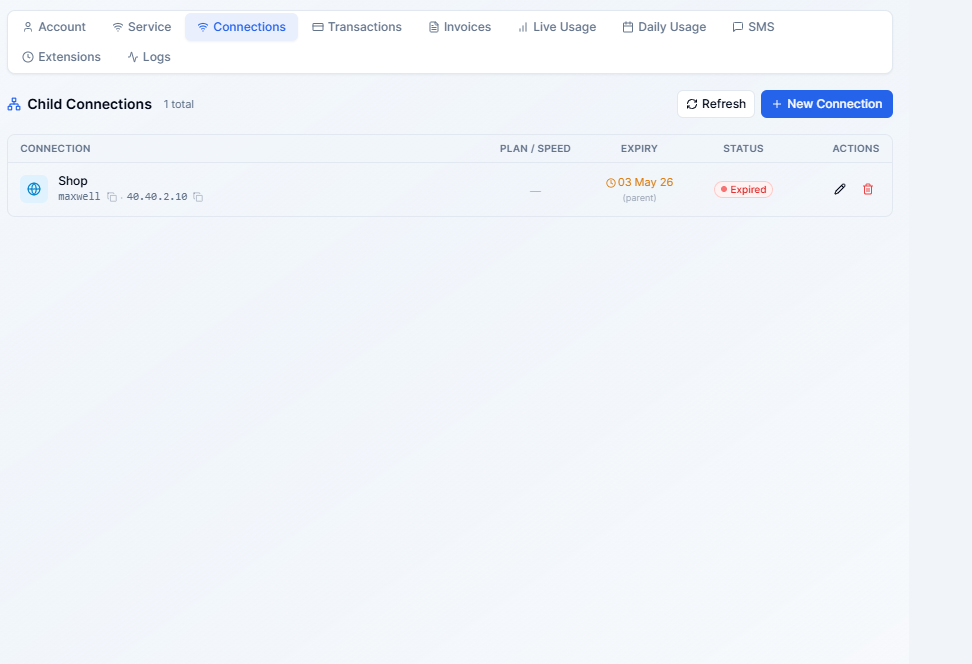
- Add new child accounts
- Edit or suspend/delete existing child accounts
- View each child’s status, plan, and expiry
Live Usage Tab
Shows real-time bandwidth consumption for the current session.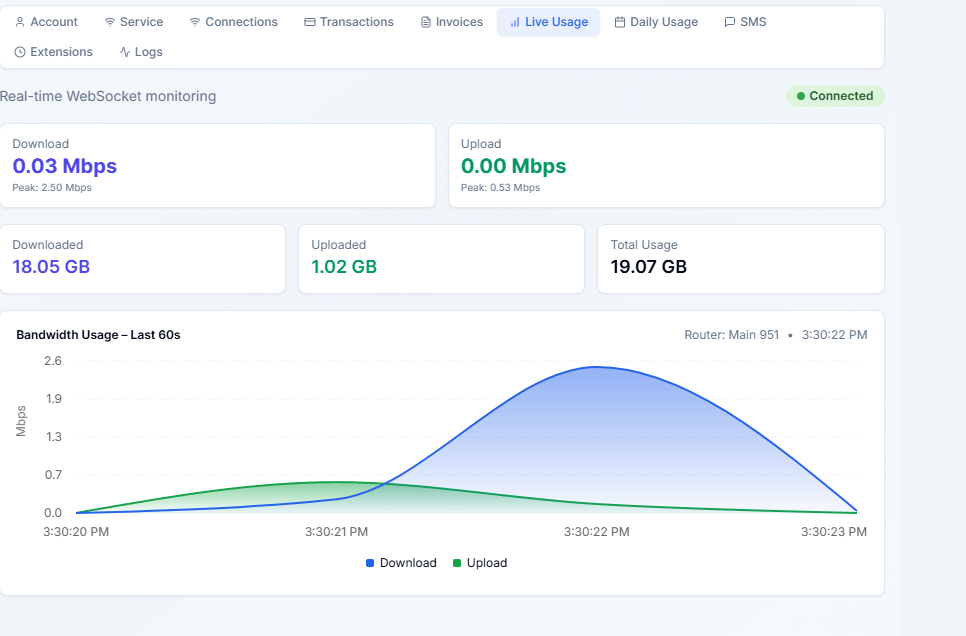
- Current download and upload speed (live-refreshing)
- Data used in the current session
- Session start time and duration
Live Usage data is only visible when the customer has an active RADIUS session.
Daily Usage Tab
Shows a daily breakdown of data consumed over time.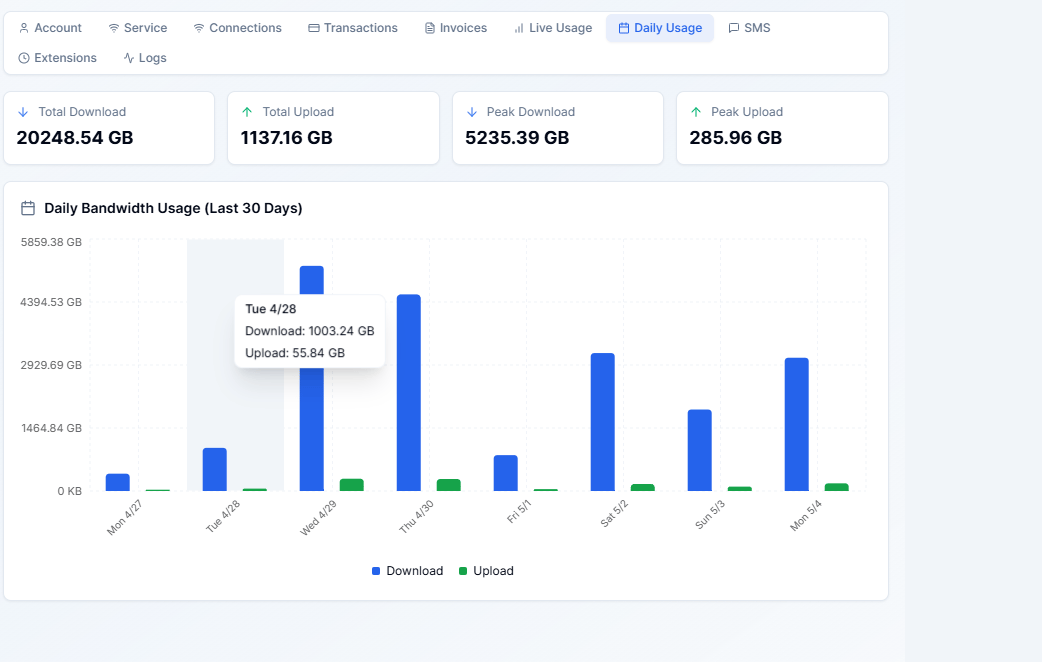
- Bar chart of daily upload and download volumes
- Date range picker to zoom in or out
- Total data used per day
Extension History Tab
A log of every time this customer’s expiry was manually extended (without a payment).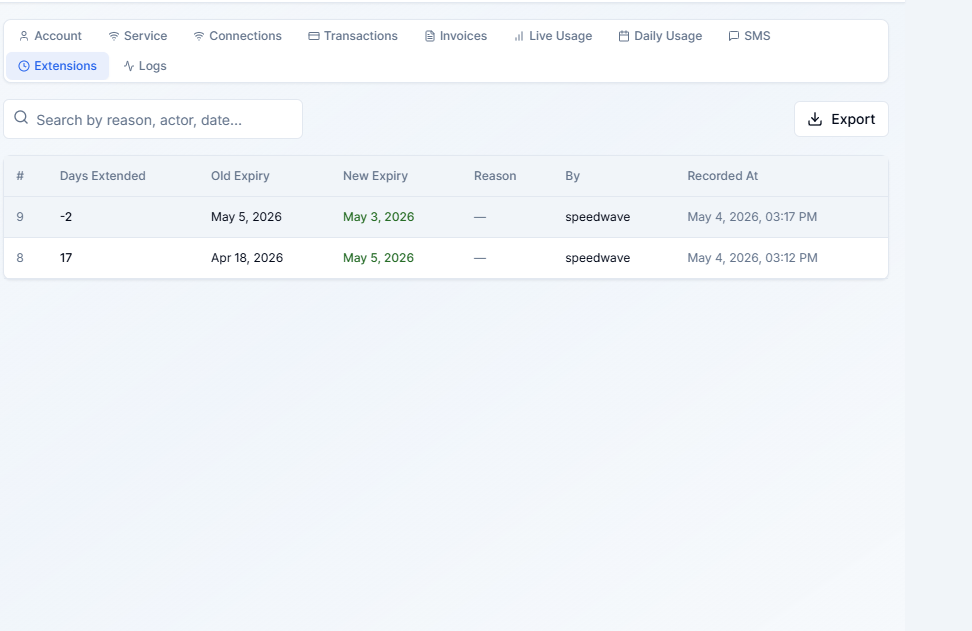
- Date of extension
- Days added
- Staff member who approved the extension
SMS History Tab
All SMS messages sent to this customer from Lipanet Portal.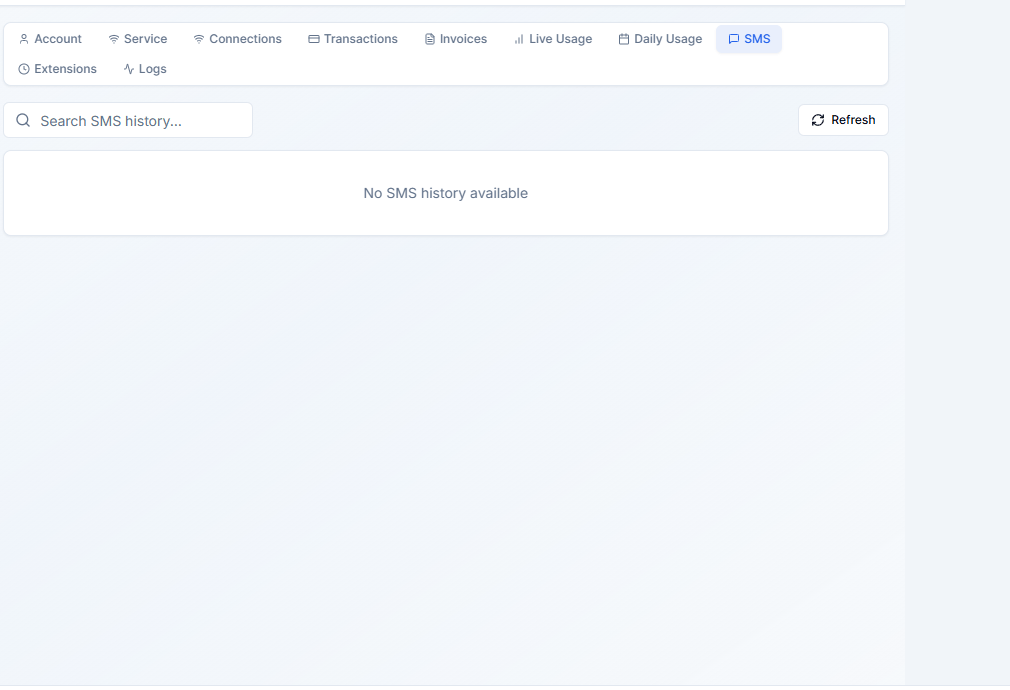
- Message content
- Sent date and time
- Delivery status
Logs Tab
An audit trail of all changes made to this customer’s account.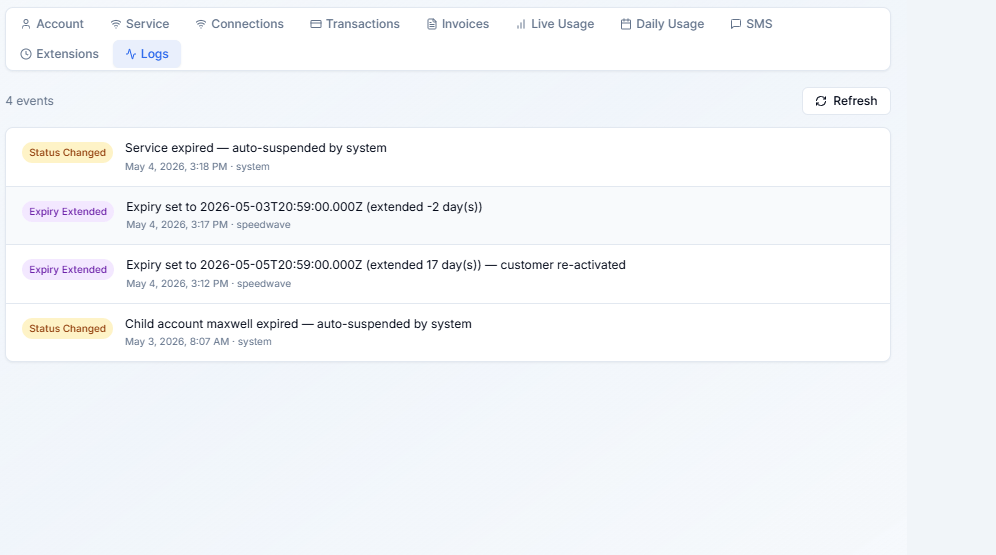
- Who made each change and when
- What was changed (plan, IP, password, status, etc.)
Recording a Payment
- Click Add Payment at the top of the customer detail page.
- Select the payment method.
- Enter the amount. For M-Pesa, paste the transaction code.
- Choose whether to activate the plan immediately.
- Click Save Payment.

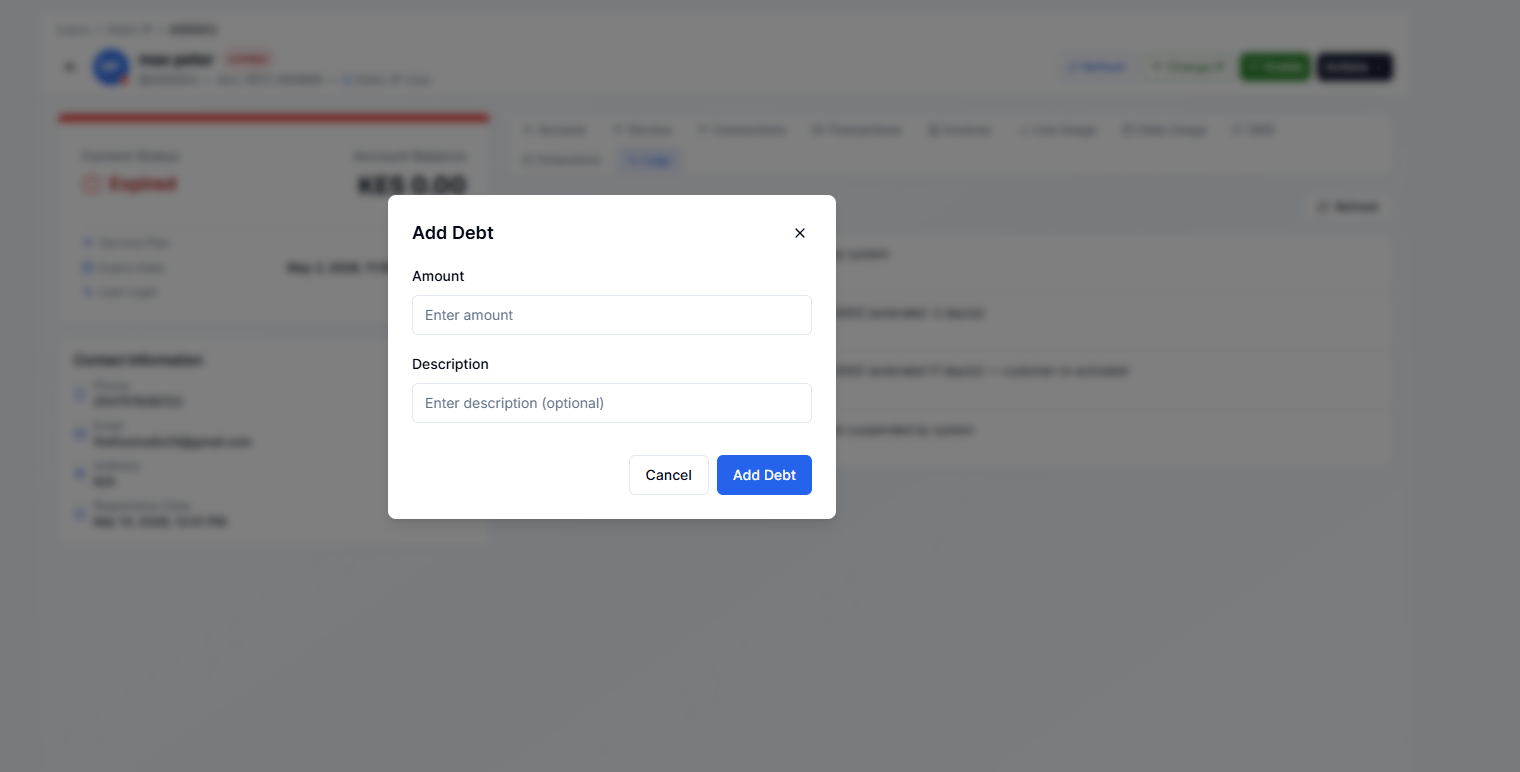
Recording a Debt
Use Add Debt when a customer’s plan should start but they haven’t paid yet (e.g. credit arrangement).- Click Add Debt.
- Enter the amount owed.
- Optionally add a note.
- Click Save.
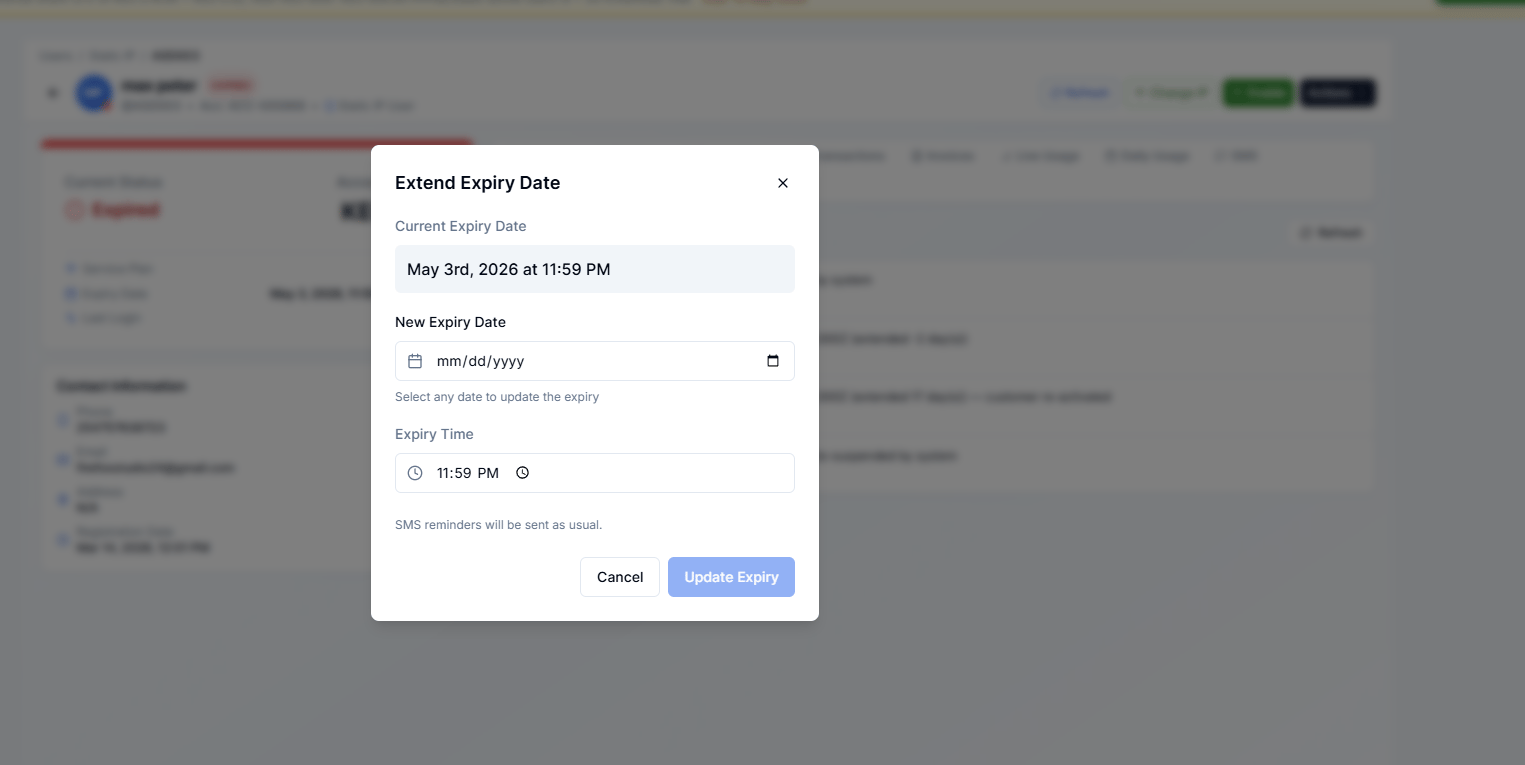
Extending Expiry
Use Extend Expiry when you want to give a customer more time without recording a payment (e.g. goodwill, complaint resolution).- Click Extend Expiry.
- Enter the number of days to add, or pick a new expiry date.
- Optionally add a reason.
- Click Extend.
Sending Payment Details via SMS
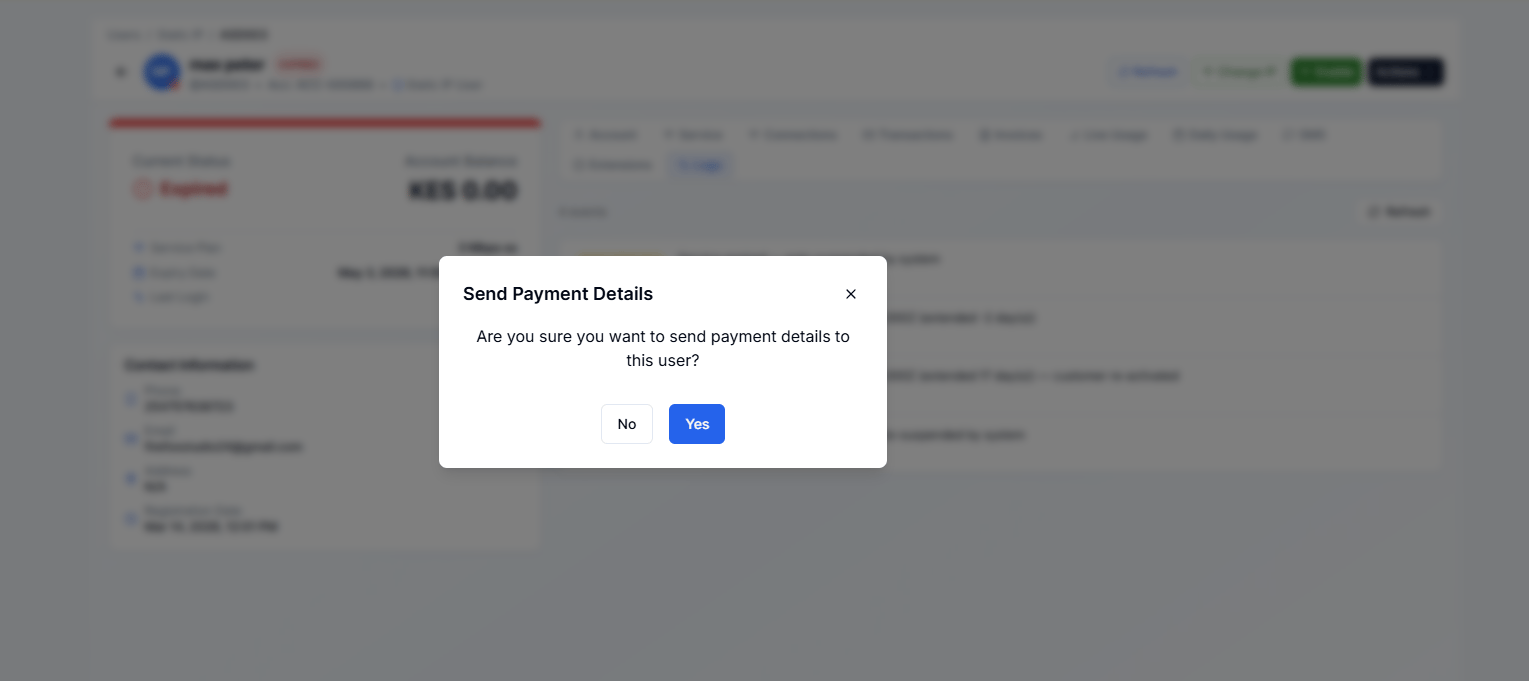
Click Send Payment Details to SMS the customer their account number and payment instructions.