
How to start
Log in to your Lipanet account and proceed to the routers section on your sidebar\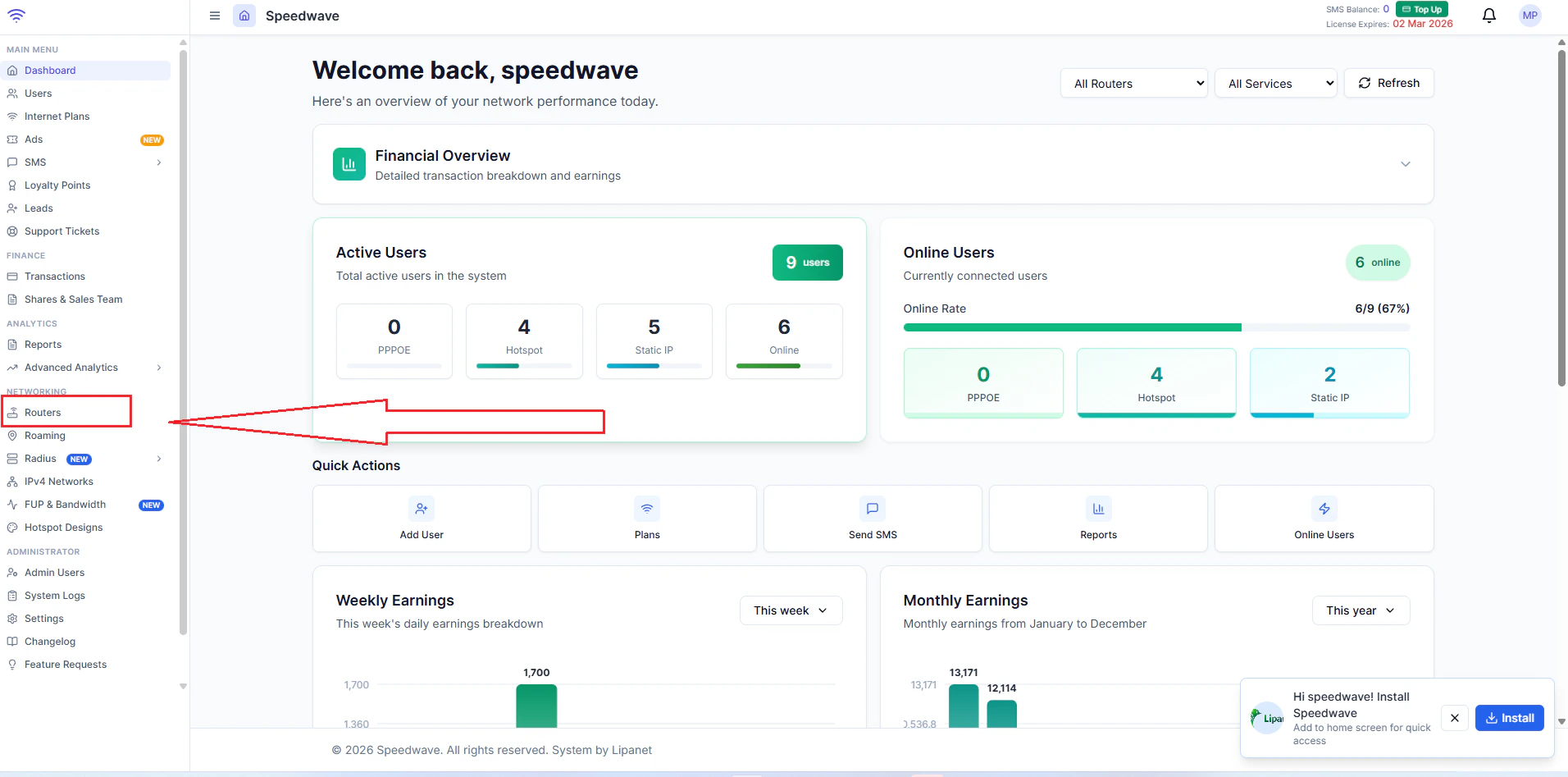
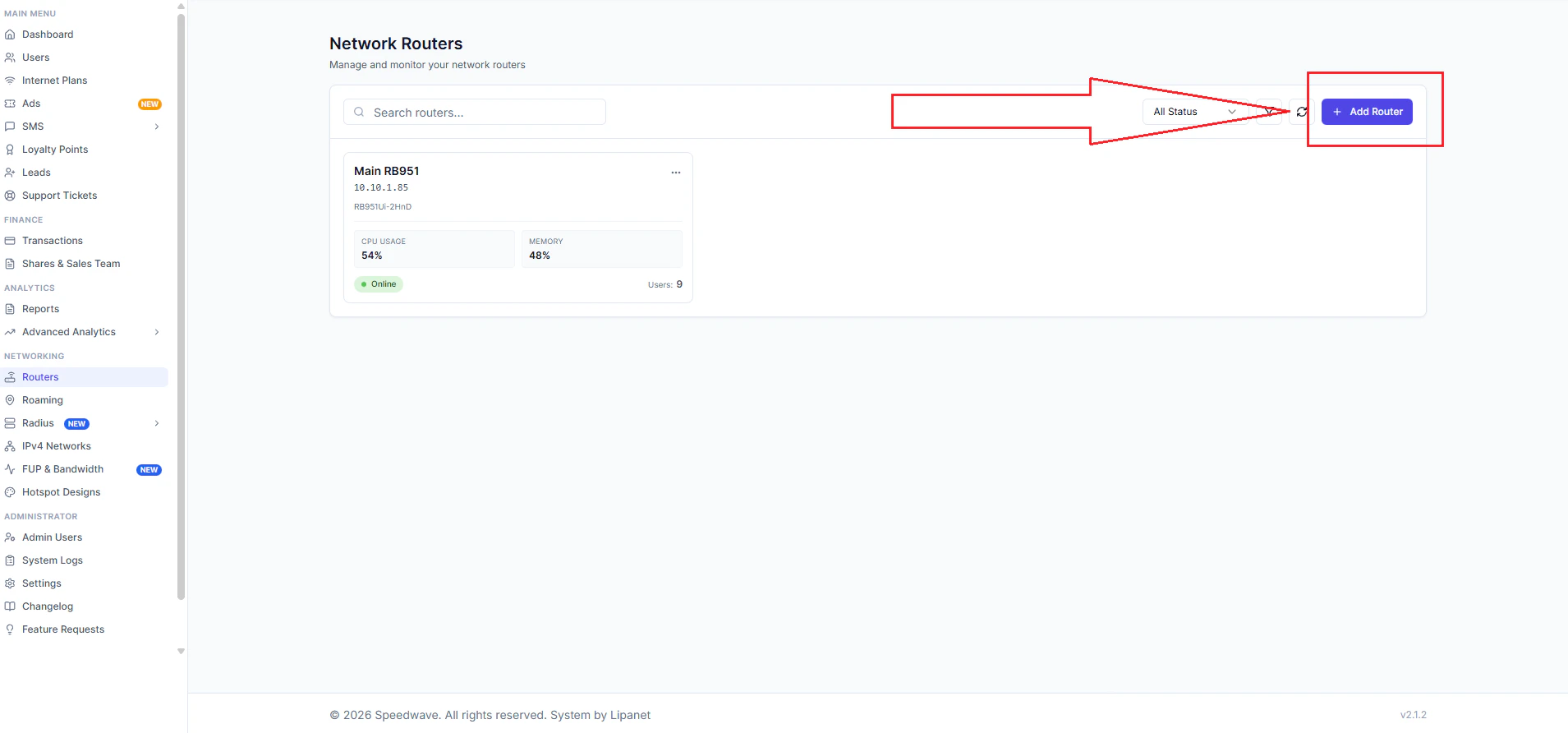
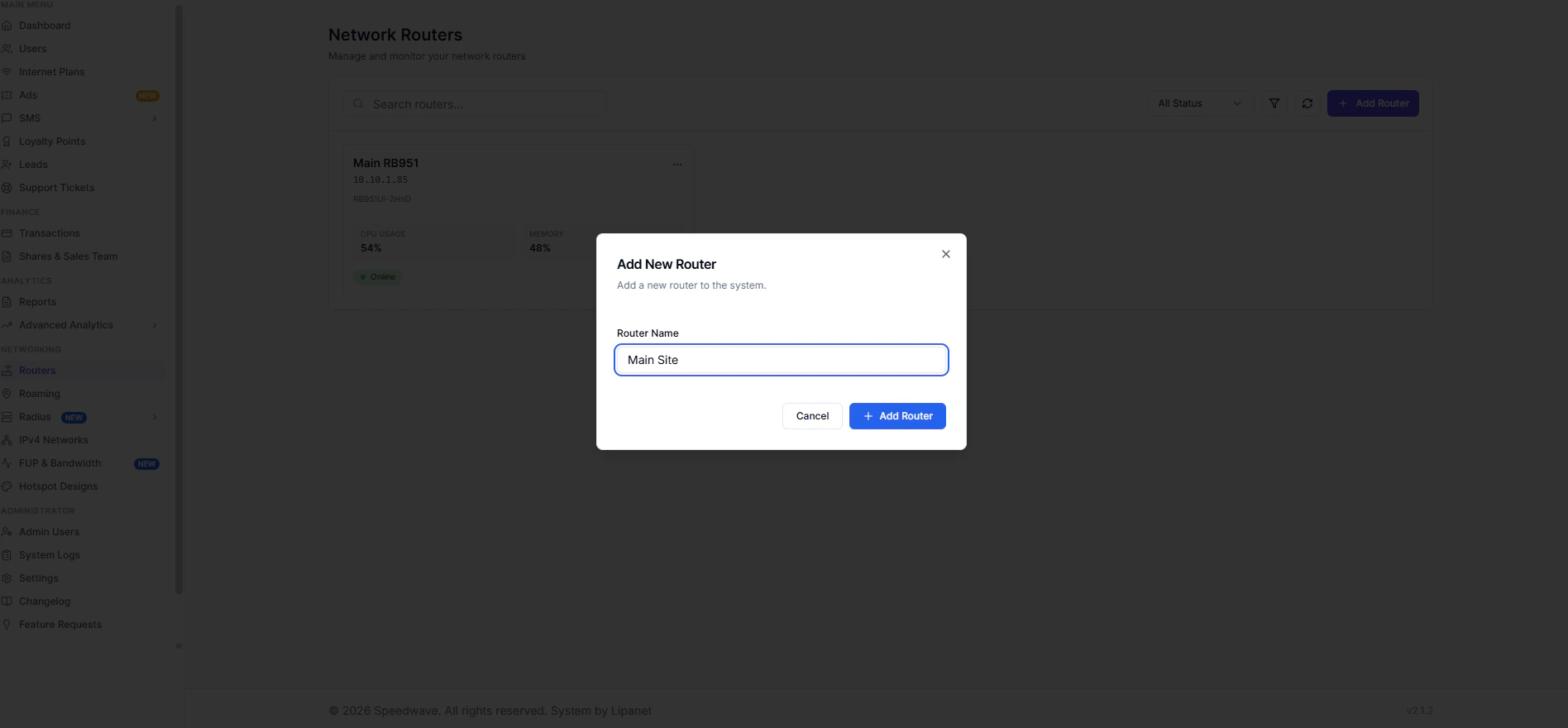
/system/device-mode update mode=advancedThen, power off your Mikrotik by disconnecting from power for 10 seconds
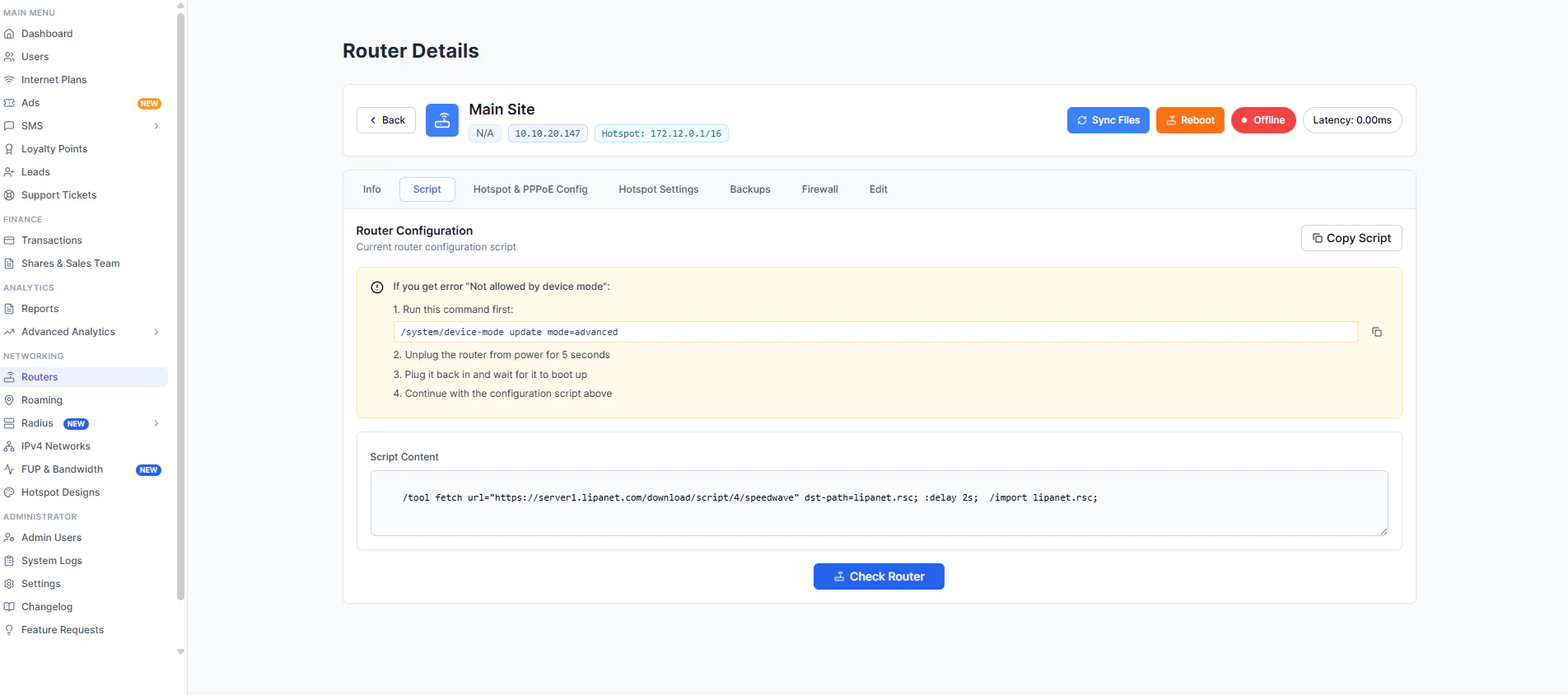
Congratulations, you are done with the main step
STEP 2 Now proceed to the Hotspot & PPPoE config tabYou will see the Check ports button, click it to fetch the ports from Mikrotik
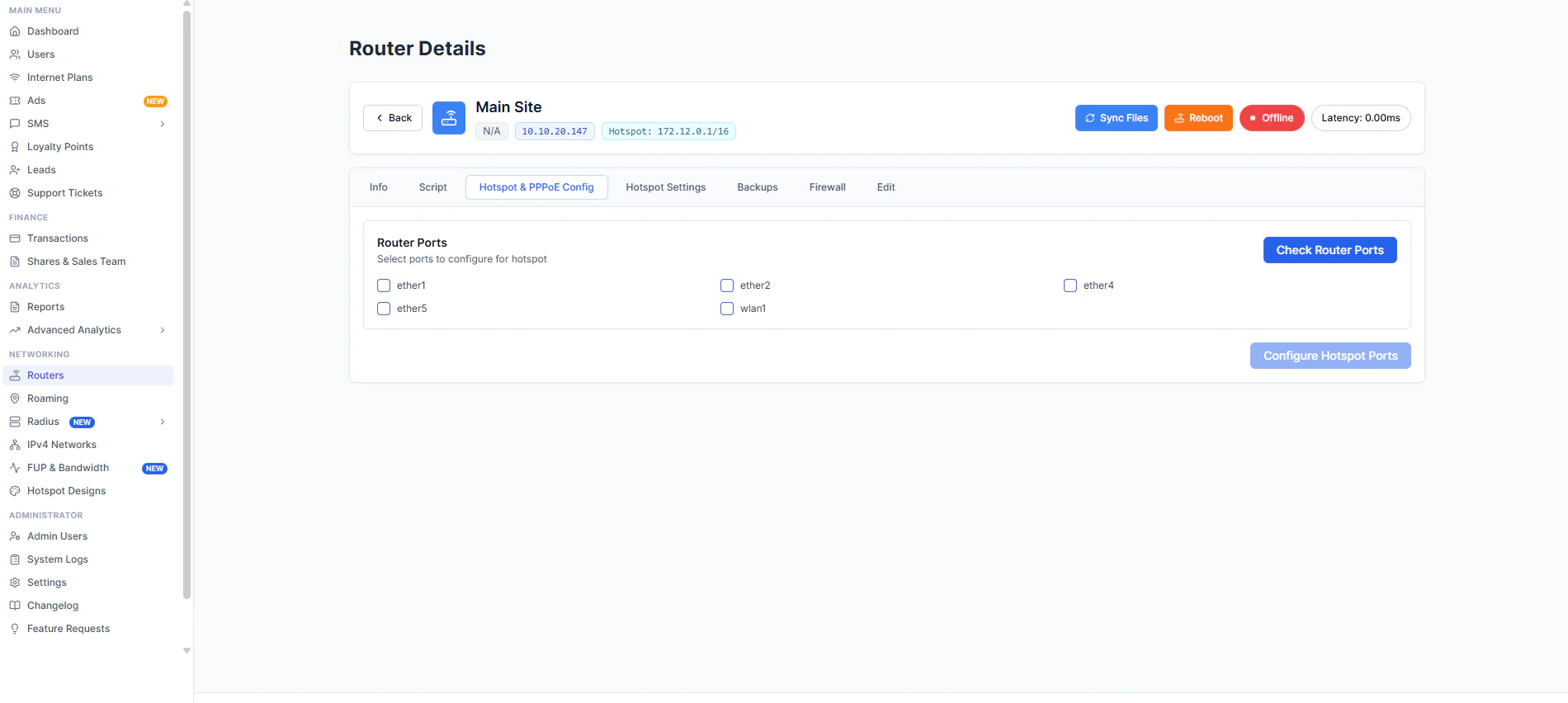
Select the ports you want to configure PPPoE and hotspot. DO NOT SELECT THE WAN PORT, as the Mikrotik won’t be able to access the internet until you revert. After that, click Configure Hotspot Ports. This will push configurations to the Mikrotik and set the PPPoE & hotspot server on your Mikrotik.
FINAL STEP: SET HOTSPOT NAME & PAGE
After completing Mikrotik setup, the last thing is to configure or set the hotspot page settings, which include the name, customer care number, free trial setting, and notification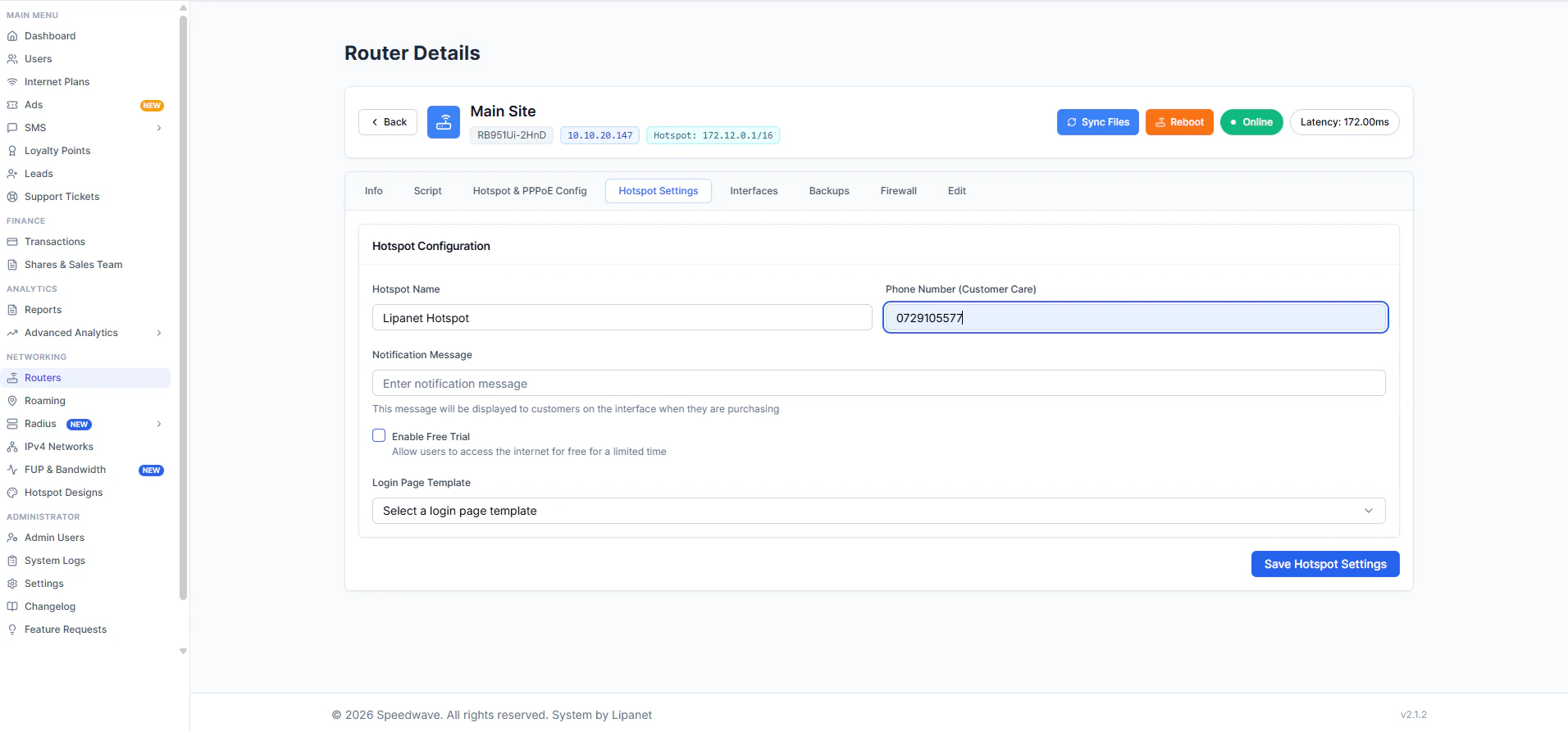
The notification message is the text that appears at the top of the hotspot; this can be an announcement or instructions. We have 10 different hotspot pages. Choose the one that suits your aesthetics, then click save settings YOUR HOTSPOT IS NOW READY FOR USE
For customers to complete a hotspot purchase, you must set up a payment gateway. Please refer to the link below on how to set up a payment gateway https://wiki.lipanet.com/gateways/payment