
Import Customers
Instead of adding customers one at a time, you can upload a CSV file to import many customers at once. This is useful when migrating from another system or onboarding a new estate or building. Navigate to: Sidebar → Users → any user list page → Import button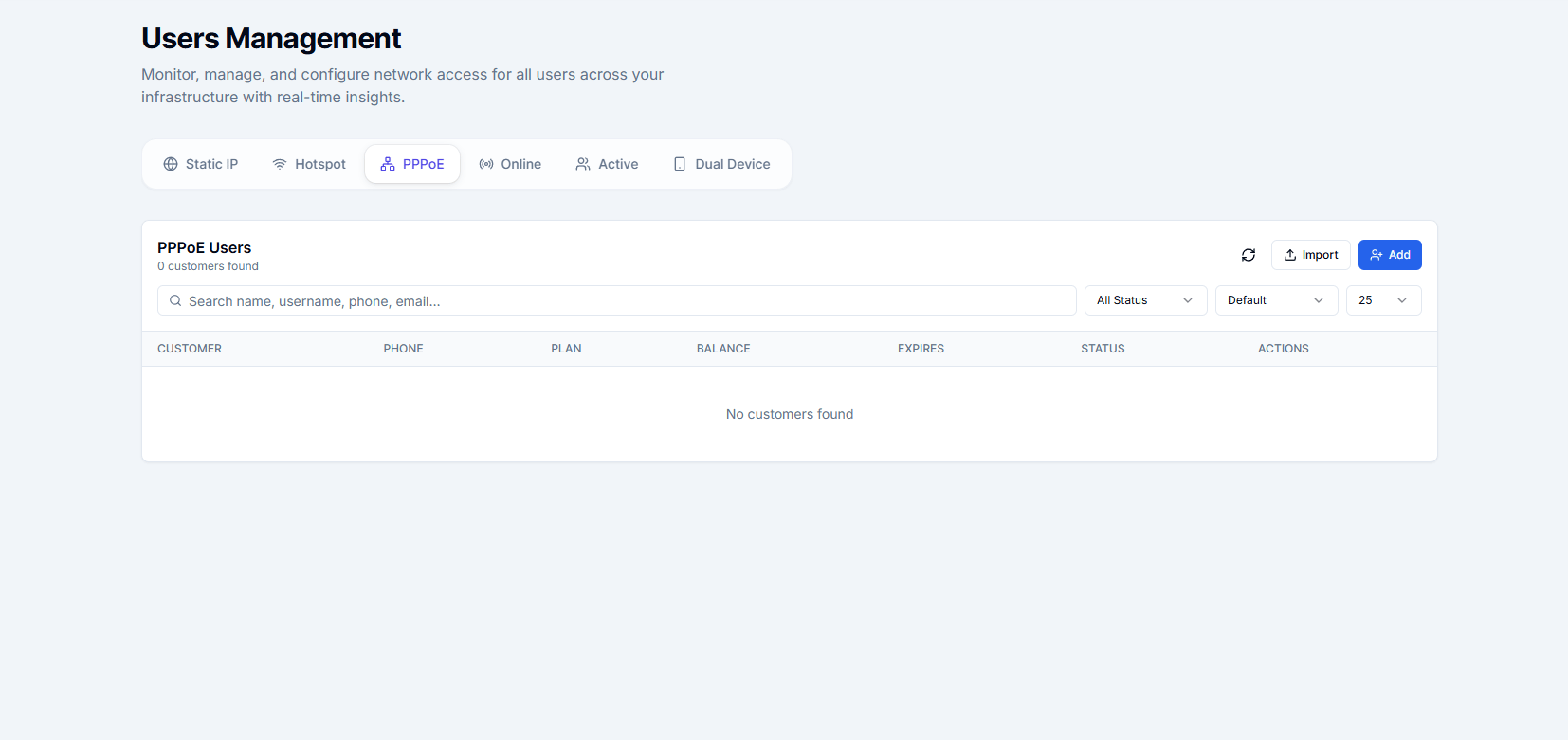
Download the Template
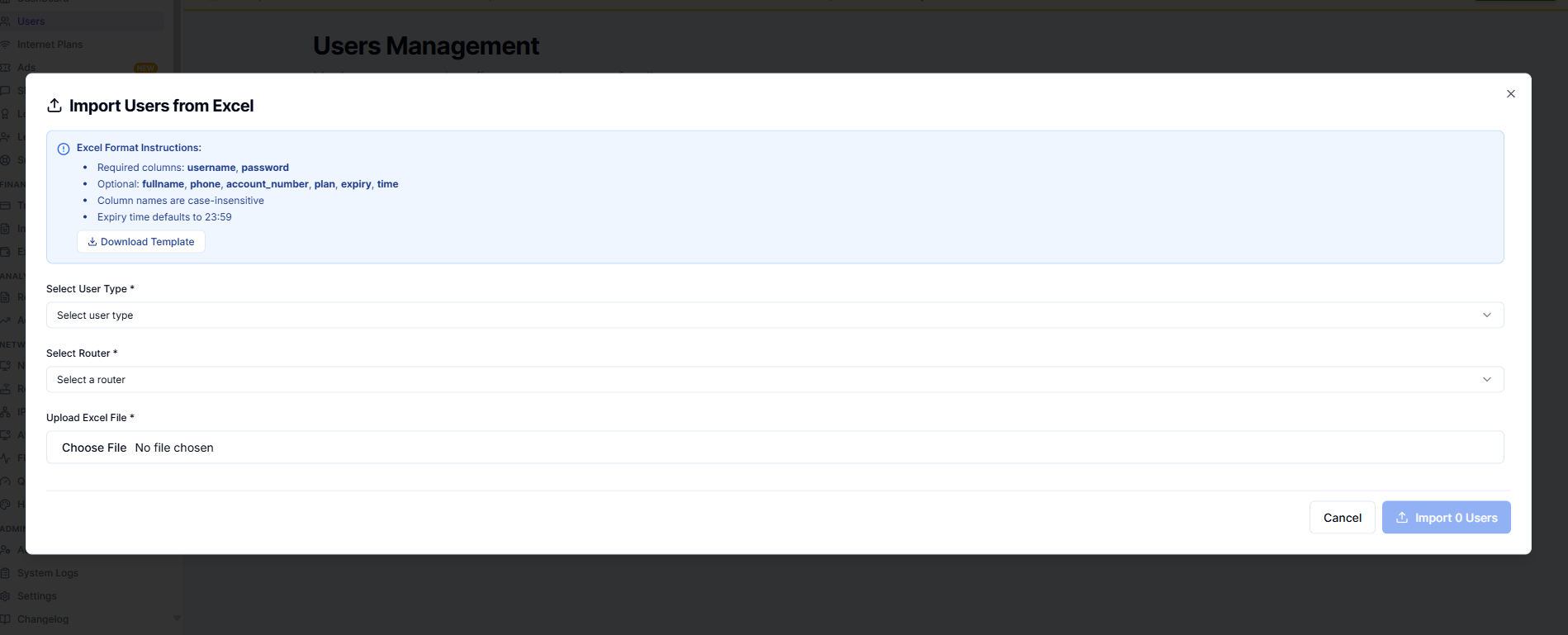
Before uploading, download the official CSV template to make sure your file uses the correct column headers and format.- Click Import.
- In the import dialog, click Download Template.
- Open the file in Excel or Google Sheets.
Fill in the Template
Fill in one customer per row. Required columns are marked in the template header.Upload and Import
- Save the completed CSV file.
- Click Import on the user list page.
- Click Choose File and select your CSV.
- Review the preview table showing the first few rows.
- If everything looks correct, click Import.
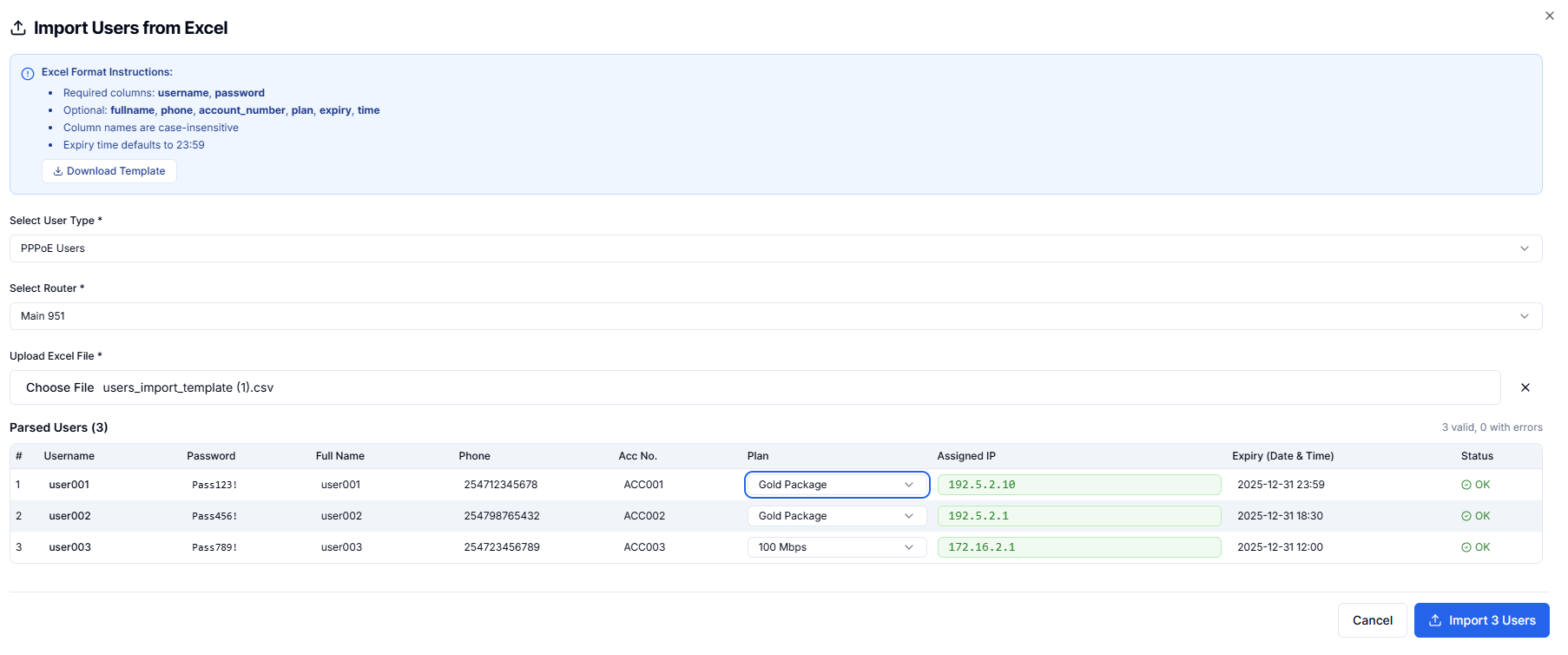
Rows with errors are skipped — the rest still import. Fix errors in your CSV and re-import the failed rows.