
IP Bindings
Use IP Bindings to manage hotspot bypass devices from one page. You can:- select a router
- add or edit a binding
- set expiry
- set renewal amount and renewal duration
- send a renewal link
- restore an expired binding
- use reusable profiles
This page is for hotspot device bindings. It is different from customer plan provisioning and different from IP address management.
Where to Find It
Navigate to: Sidebar -> Networking -> IP Bindings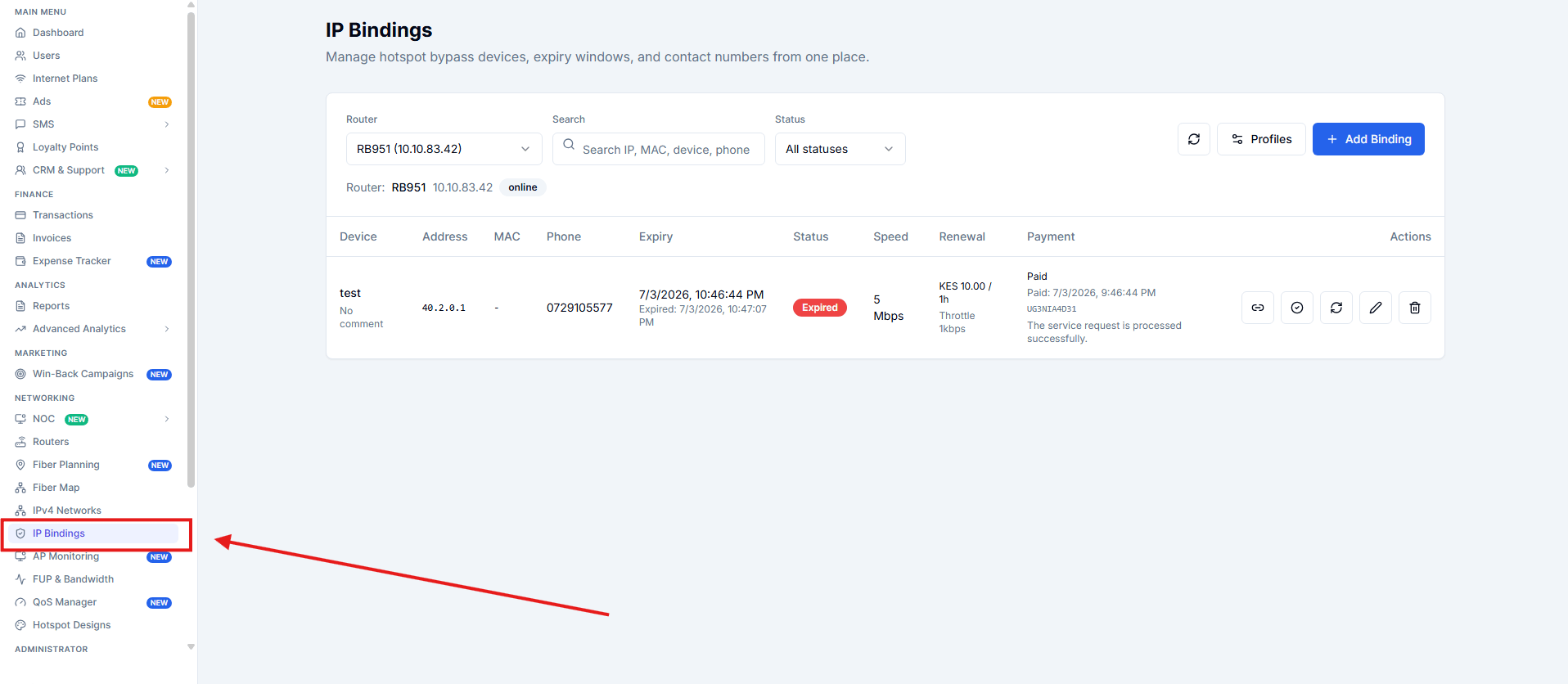
/networking/ip-bindings
Before You Start
Select the router you want to work on from the Router dropdown at the top of the page. The page then loads bindings for that router.Add a Binding
Click Add Binding.Fields
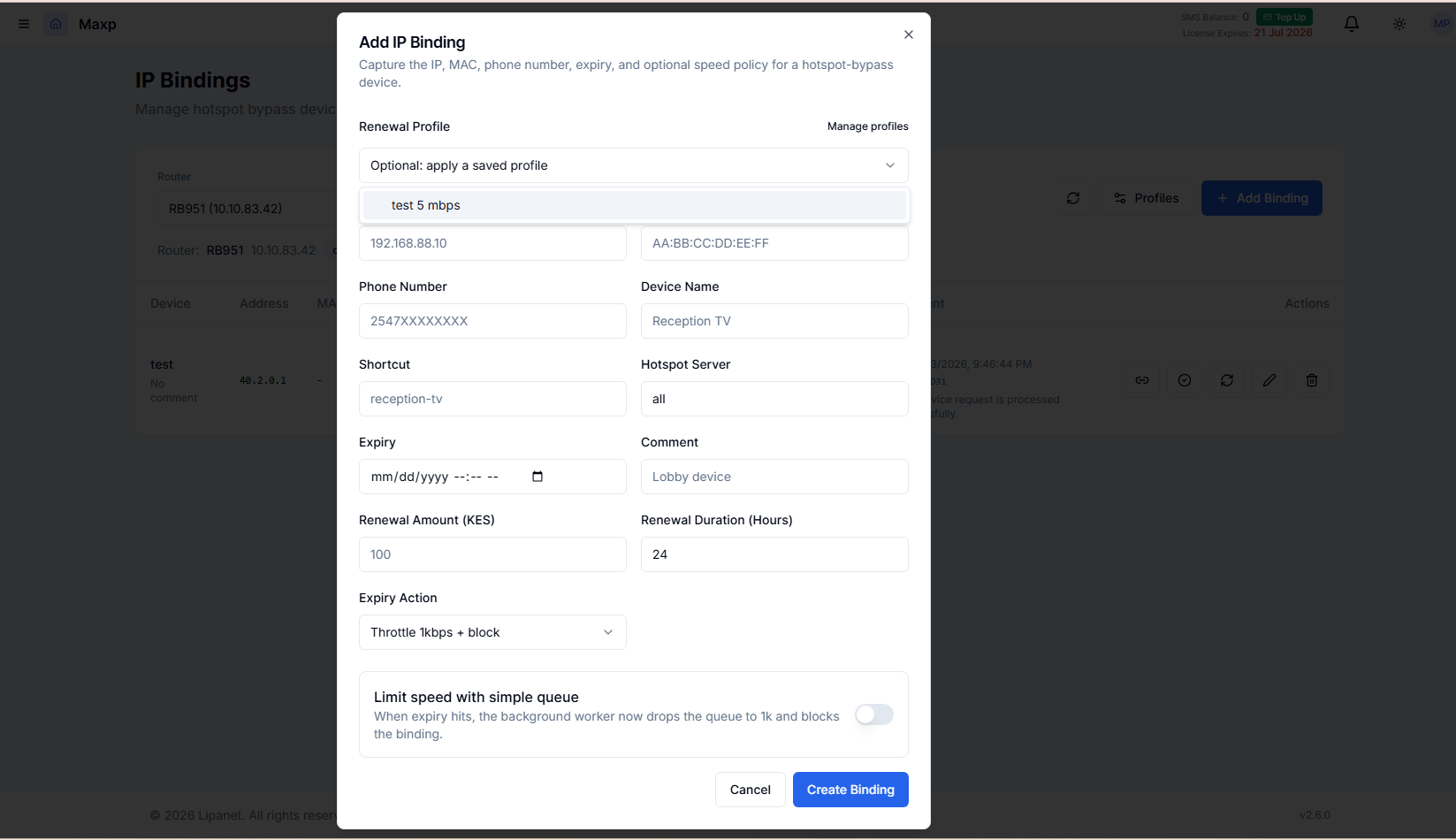
Expiry Actions
Throttle 1kbps + blockBlock onlyRemove binding
Binding Profiles
Use Profiles to save reusable binding settings for a router.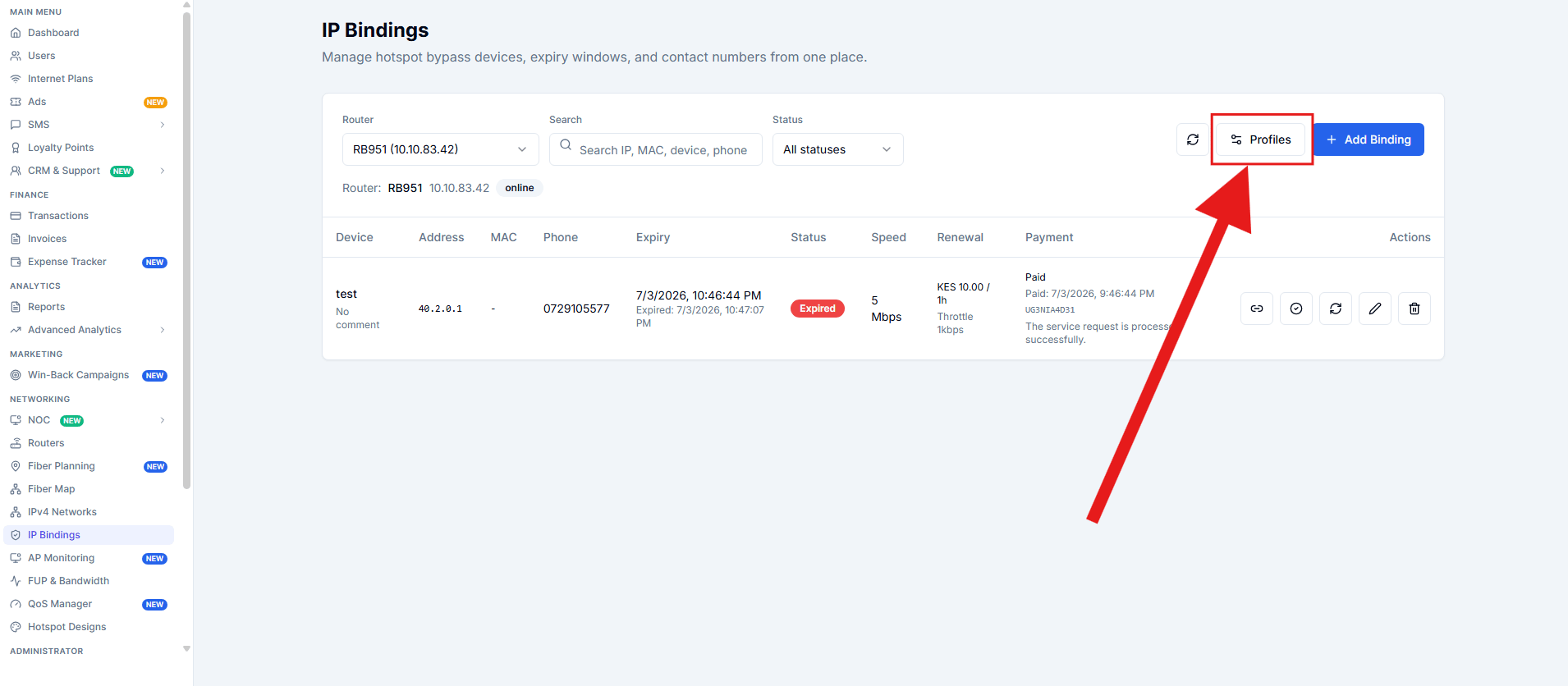
- speed
- renewal amount
- renewal hours
- expiry action
- comment
Renewal Flow
If a binding has a phone number and renewal amount, you can send a renewal link. Typical flow:- Binding expires.
- User receives a renewal link by SMS.
- User pays.
- The binding is restored.
Restore Options
Each binding can be restored from the actions column.Manual Restore
Use this when staff want to restore access directly.Reconcile Paid Restore
Use this when payment already succeeded but access still needs to be applied again.What You See in the Table
The bindings table shows:- device
- IP address
- MAC address
- phone
- expiry
- status
- speed
- renewal details
- payment state
- search bindings
- filter by status
- refresh the list