> ## Documentation Index
> Fetch the complete documentation index at: https://wiki.lipanet.com/llms.txt
> Use this file to discover all available pages before exploring further.
# Self portal Login
# Customer Portal Access
Lipanet Portal gives you two different ways to help a customer access service:
1. **Customer portal login credentials** — used when the customer needs to open their portal account to view their service, invoices, usage, or tickets.
2. **Hotspot login link** — used when a hotspot customer needs a one-tap link to connect to the internet.
***
## When to Use Each Option
| Option | Use it when | Best for |
| --------------------------- | ----------------------------------------------------------------------------------------- | ------------------------------------ |
| **Send Login Credentials** | The customer needs to sign in to the customer portal | PPPoE, Static, and Hotspot customers |
| **Send Hotspot Login Link** | The customer is a hotspot user and needs quick internet access without typing credentials | Active hotspot customers only |
***
## Send Customer Portal Login Credentials
Use this when a customer says:
* “I want to log in to my account”
* “I forgot my portal password”
* “I want to check my balance, invoices, or usage”
### Steps
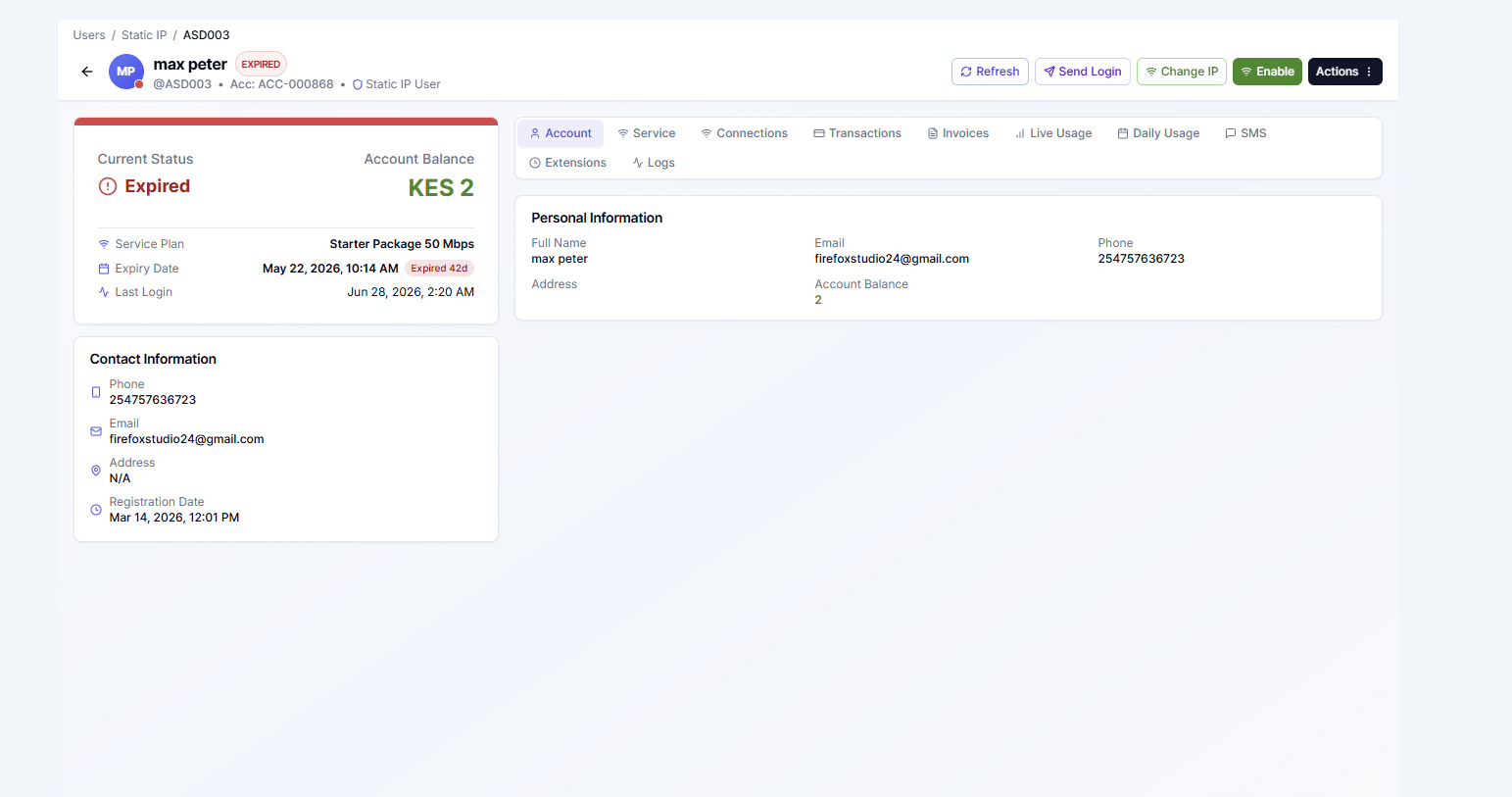
1. Open the customer's **detail page**.
2. Find the action button for **Send Login Credentials**.
3. Confirm the customer's phone number is correct.
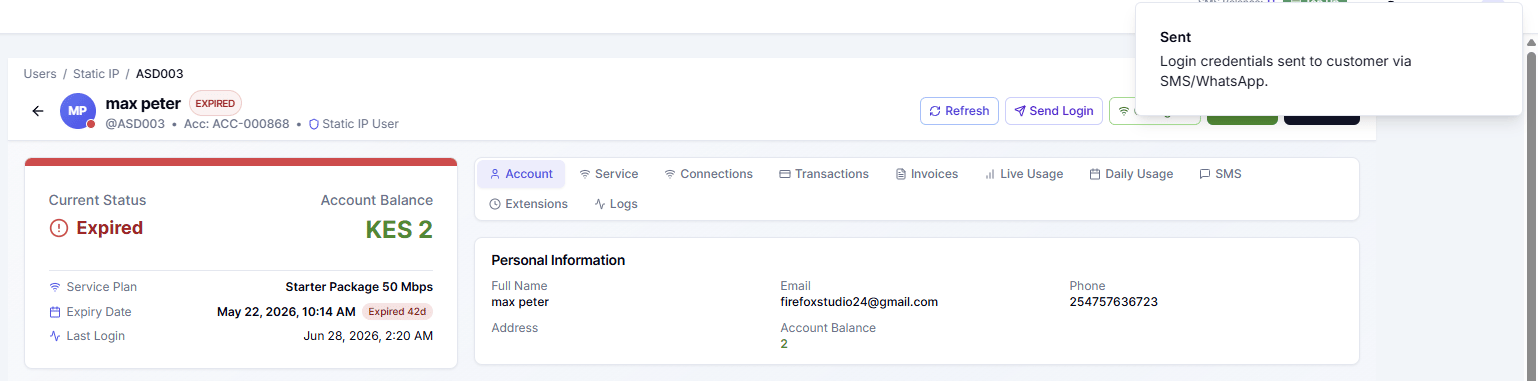
4. Send the message.
The customer receives:
* the portal link
* their username
* a new portal password
 \
\\
\
\\
 ## What the Customer Does Next
After receiving the message, the customer should:
1. Tap the portal link in the SMS.
2. Open the customer portal login page.
3. Enter the username from the SMS.
4. Enter the password from the SMS.
5. Sign in.
Once logged in, they can normally:
* View account status
* check invoices
* review usage
* change password
* Submit support tickets
> Screenshot placeholder: customer portal login page.
> Screenshot placeholder: first screen the customer sees after logging in.
***
## Send a Hotspot Login Link
Use this when a hotspot customer needs to get online quickly, and you want to send them a direct login link instead of having them type details manually.
This option is only for:
* **Hotspot customers**
* customers with an **active hotspot package**
### Steps
1. Open the hotspot customer's **detail page**.
2. Click **Send Hotspot Login Link**.
3. Confirm the phone number.
4. Send the link.
The customer receives a one-tap hotspot access link by SMS.
> Screenshot placeholder: customer detail page showing the **Send Hotspot Login Link** action button.
> Screenshot placeholder: success message after sending the hotspot login link.
***
## What the Hotspot Customer Does Next
After receiving the hotspot login link, the customer should:
1. Connect to the hotspot Wi-Fi network.
2. Tap the login link from the SMS.
3. The hotspot session opens using that link.
4. They should now be able to browse if the package is still active.
This is useful for customers who struggle with typing usernames, passwords, or voucher details on mobile devices.
> Screenshot placeholder: SMS containing the hotspot login link.
> Screenshot placeholder: hotspot page or success page after opening the link.
***
## Important Difference
If a customer says they cannot access the **portal account**, send **login credentials**.
If a customer says they cannot get **hotspot internet access**, send a **hotspot login link**.
In simple terms:
* **Portal login credentials** = account access
* **Hotspot login link** = internet session access
***
## Common Checks Before Sending
Before sending either option, confirm:
* The customer's phone number is correct
* The customer record is the right one
* for hotspot login links, the customer is still active and not expired
If the customer does not receive the SMS:
1. Verify the phone number on the customer account
2. resend once
3. Check SMS history on the customer profile
> Screenshot placeholder: customer SMS history tab.
***
## Related Pages
Learn where customer actions, tabs, and management buttons are located.
Check whether a customer is active or currently connected.
## What the Customer Does Next
After receiving the message, the customer should:
1. Tap the portal link in the SMS.
2. Open the customer portal login page.
3. Enter the username from the SMS.
4. Enter the password from the SMS.
5. Sign in.
Once logged in, they can normally:
* View account status
* check invoices
* review usage
* change password
* Submit support tickets
> Screenshot placeholder: customer portal login page.
> Screenshot placeholder: first screen the customer sees after logging in.
***
## Send a Hotspot Login Link
Use this when a hotspot customer needs to get online quickly, and you want to send them a direct login link instead of having them type details manually.
This option is only for:
* **Hotspot customers**
* customers with an **active hotspot package**
### Steps
1. Open the hotspot customer's **detail page**.
2. Click **Send Hotspot Login Link**.
3. Confirm the phone number.
4. Send the link.
The customer receives a one-tap hotspot access link by SMS.
> Screenshot placeholder: customer detail page showing the **Send Hotspot Login Link** action button.
> Screenshot placeholder: success message after sending the hotspot login link.
***
## What the Hotspot Customer Does Next
After receiving the hotspot login link, the customer should:
1. Connect to the hotspot Wi-Fi network.
2. Tap the login link from the SMS.
3. The hotspot session opens using that link.
4. They should now be able to browse if the package is still active.
This is useful for customers who struggle with typing usernames, passwords, or voucher details on mobile devices.
> Screenshot placeholder: SMS containing the hotspot login link.
> Screenshot placeholder: hotspot page or success page after opening the link.
***
## Important Difference
If a customer says they cannot access the **portal account**, send **login credentials**.
If a customer says they cannot get **hotspot internet access**, send a **hotspot login link**.
In simple terms:
* **Portal login credentials** = account access
* **Hotspot login link** = internet session access
***
## Common Checks Before Sending
Before sending either option, confirm:
* The customer's phone number is correct
* The customer record is the right one
* for hotspot login links, the customer is still active and not expired
If the customer does not receive the SMS:
1. Verify the phone number on the customer account
2. resend once
3. Check SMS history on the customer profile
> Screenshot placeholder: customer SMS history tab.
***
## Related Pages
Learn where customer actions, tabs, and management buttons are located.
Check whether a customer is active or currently connected.