> ## Documentation Index
> Fetch the complete documentation index at: https://wiki.lipanet.com/llms.txt
> Use this file to discover all available pages before exploring further.
# Create a Devices User
> How to create a devices user so a customer can sign in and use the TVs and screens linked to their account.
# Create a Devices User
A **devices user** is the account your customer uses to sign in to the LipaNet devices portal and watch the TVs and screens you have linked for them. You create the account once in your dashboard, then link one or more TVs to it.
**Navigate to:** Sidebar → **Networking** → **My Devices**
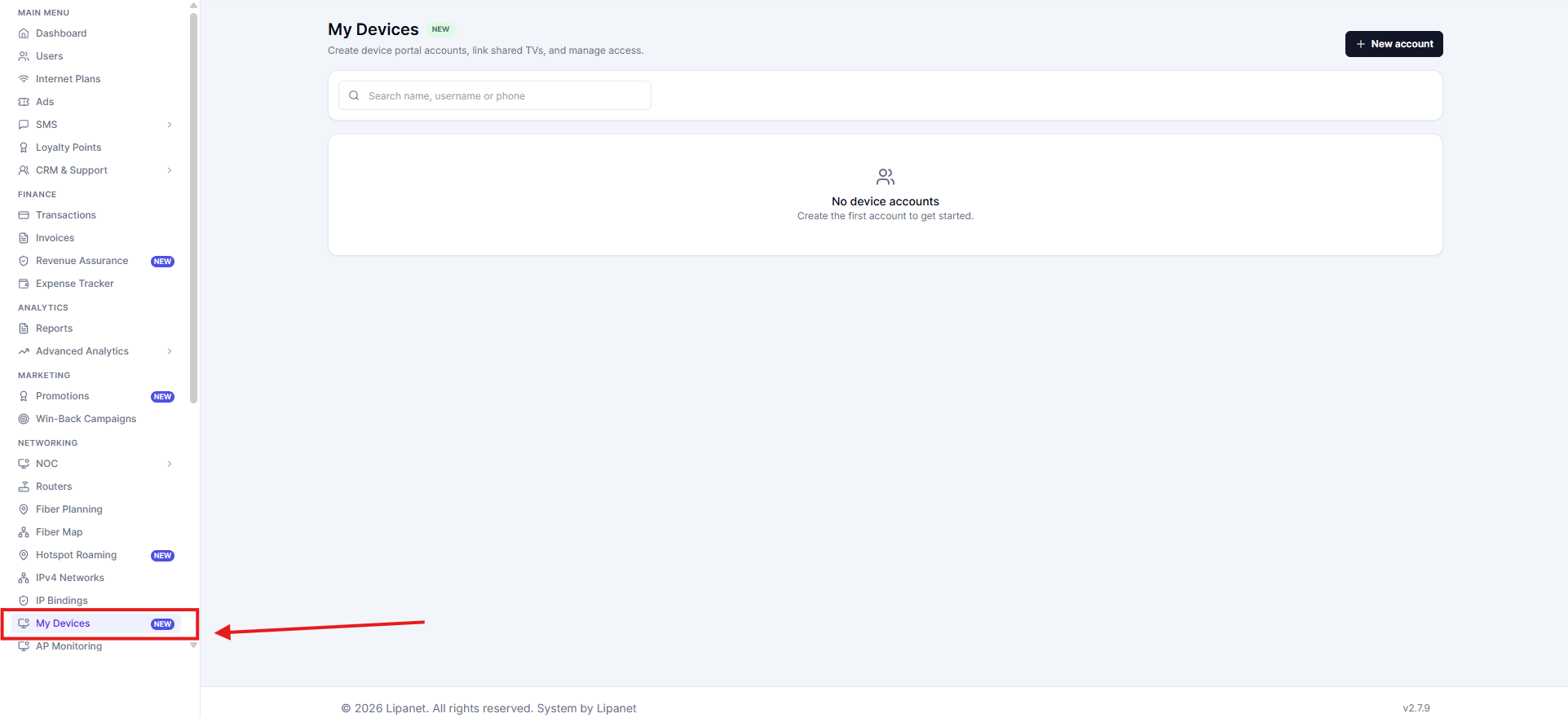 The page lists every devices user you have created, how many TVs each one holds, and its status.
***
## Step 1 — Create the account
Click **New account** in the top right to open the create form.
The page lists every devices user you have created, how many TVs each one holds, and its status.
***
## Step 1 — Create the account
Click **New account** in the top right to open the create form.
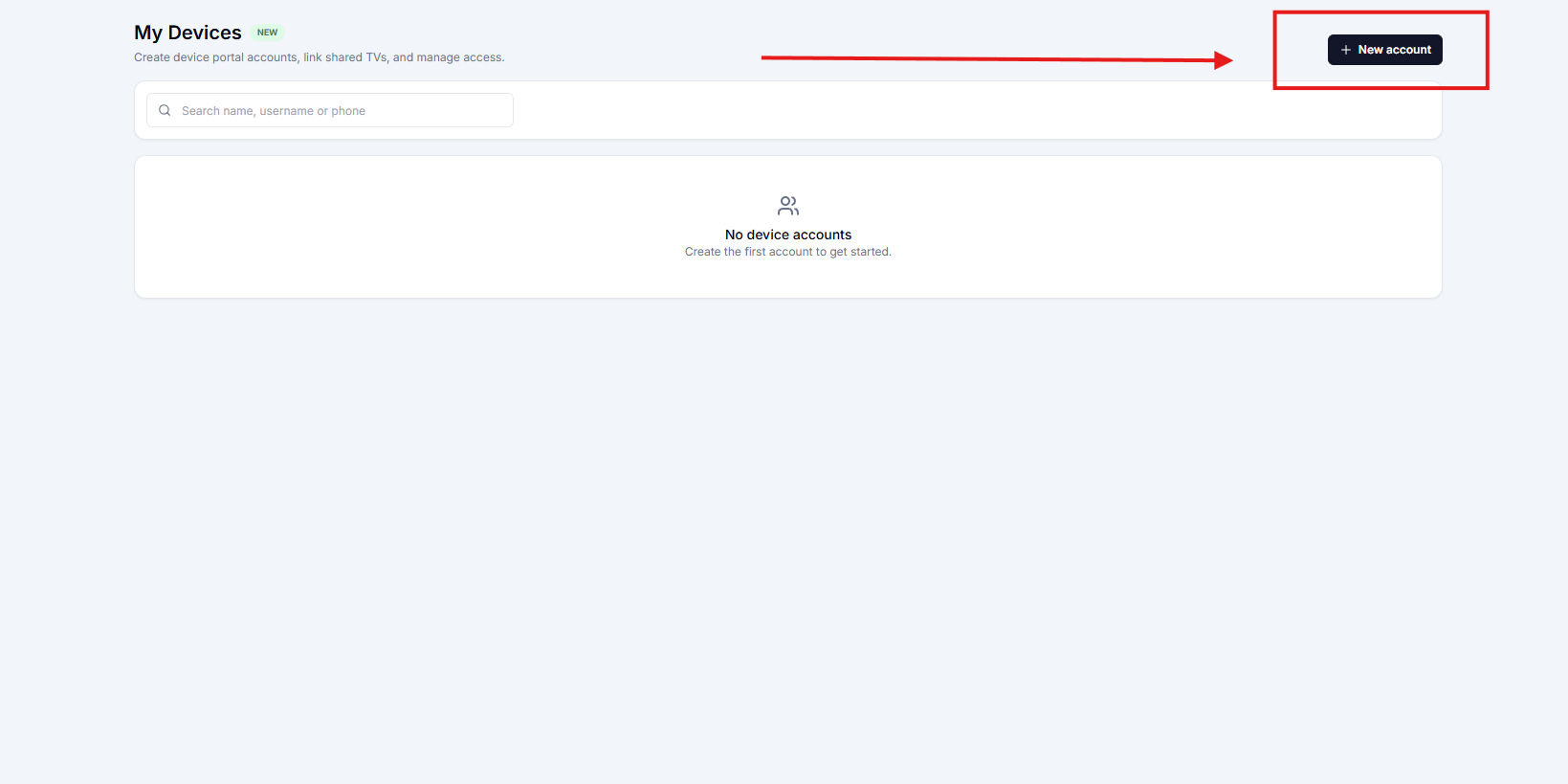 Fill in the fields below, then click **Create account**.
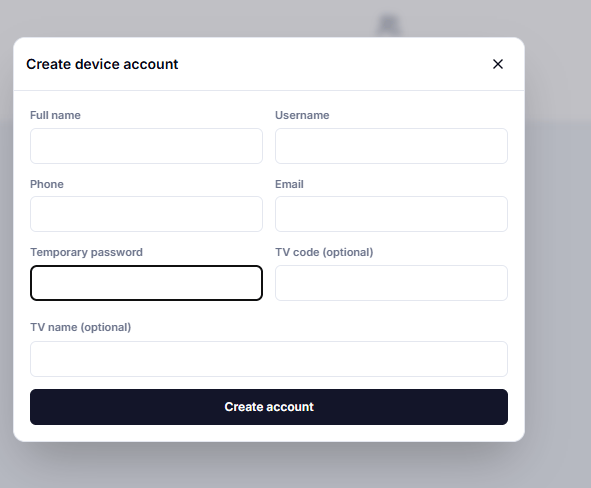 | Field | Required | Notes |
| ---------------------- | -------- | ----------------------------------- |
| **Full name** | Yes | Who the account belongs to |
| **Username** | Yes | The customer signs in with this |
| **Phone** | No | For your own records |
| **Email** | No | For your own records |
| **Temporary password** | Yes | May be as short as **4 characters** |
| **TV code** | No | 4 digits, shown on the screen |
| **TV name** | No | A label such as "Office TV" |
A password of 4 characters is accepted. There is no minimum of 6, so short customer-friendly passwords are allowed.
***
## Step 2 — Link a TV
You can link a TV while creating the account by entering the **TV code**, or later from the account itself.
1. Find the account in the list and press **Manage**.
2. Enter the **4-digit TV code** displayed on the screen.
3. Optionally add a name, such as "Office TV".
4. Press the link button to attach the TV.
Each linked TV shows its code, current IP address and connection status. Use the delete icon to remove a TV from the account.
***
## Step 3 — Give the customer the credentials
Share the **username** and **password** with your customer. They sign in on the devices portal with **Sign in**.
| Field | Required | Notes |
| ---------------------- | -------- | ----------------------------------- |
| **Full name** | Yes | Who the account belongs to |
| **Username** | Yes | The customer signs in with this |
| **Phone** | No | For your own records |
| **Email** | No | For your own records |
| **Temporary password** | Yes | May be as short as **4 characters** |
| **TV code** | No | 4 digits, shown on the screen |
| **TV name** | No | A label such as "Office TV" |
A password of 4 characters is accepted. There is no minimum of 6, so short customer-friendly passwords are allowed.
***
## Step 2 — Link a TV
You can link a TV while creating the account by entering the **TV code**, or later from the account itself.
1. Find the account in the list and press **Manage**.
2. Enter the **4-digit TV code** displayed on the screen.
3. Optionally add a name, such as "Office TV".
4. Press the link button to attach the TV.
Each linked TV shows its code, current IP address and connection status. Use the delete icon to remove a TV from the account.
***
## Step 3 — Give the customer the credentials
Share the **username** and **password** with your customer. They sign in on the devices portal with **Sign in**.
 The same credentials work every time, so a single account is enough for all the screens linked to it.
***
## Troubleshooting
If a TV does not appear after the customer has paid for it, open the account and link the TV code again. The link can be recreated at any time and does not affect the customer's payments or balance.
Deleting a device account removes its TV links. The customer will not be able to sign in to the devices portal until a new account is created for them.
***
## Related pages
* [Hotspot Plans](/plans/hotspot-plans)
* [Routers](/networking/routers)
* [AP Monitoring](/networking/ap-monitoring)
The same credentials work every time, so a single account is enough for all the screens linked to it.
***
## Troubleshooting
If a TV does not appear after the customer has paid for it, open the account and link the TV code again. The link can be recreated at any time and does not affect the customer's payments or balance.
Deleting a device account removes its TV links. The customer will not be able to sign in to the devices portal until a new account is created for them.
***
## Related pages
* [Hotspot Plans](/plans/hotspot-plans)
* [Routers](/networking/routers)
* [AP Monitoring](/networking/ap-monitoring)