> ## Documentation Index
> Fetch the complete documentation index at: https://wiki.lipanet.com/llms.txt
> Use this file to discover all available pages before exploring further.
# Import Customers
# Import Customers
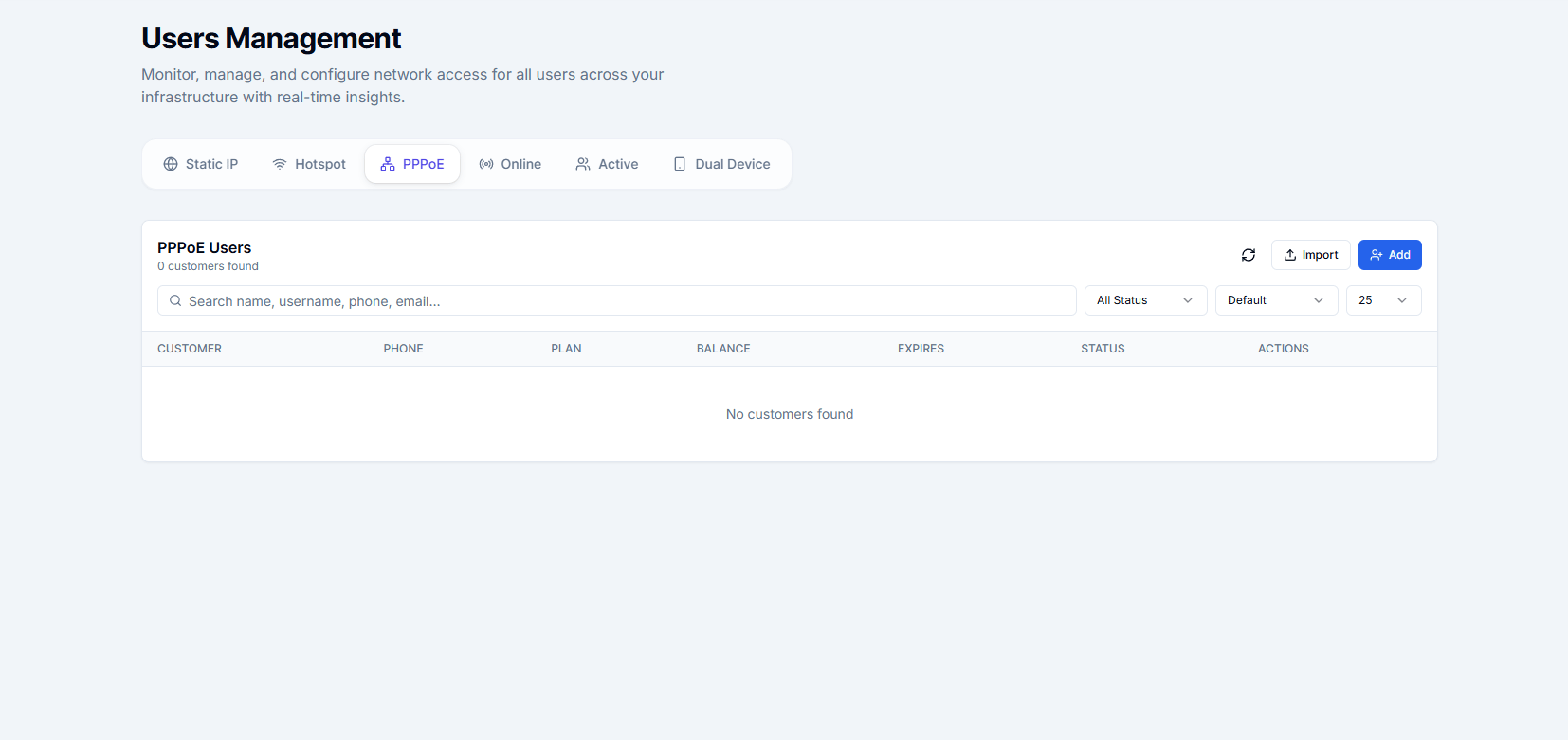
Instead of adding customers one at a time, you can upload a **CSV file** to import many customers at once. This is useful when migrating from another system or onboarding a new estate or building.
**Navigate to:** Sidebar → **Users** → any user list page → **Import** button
 ***
## Download the Template
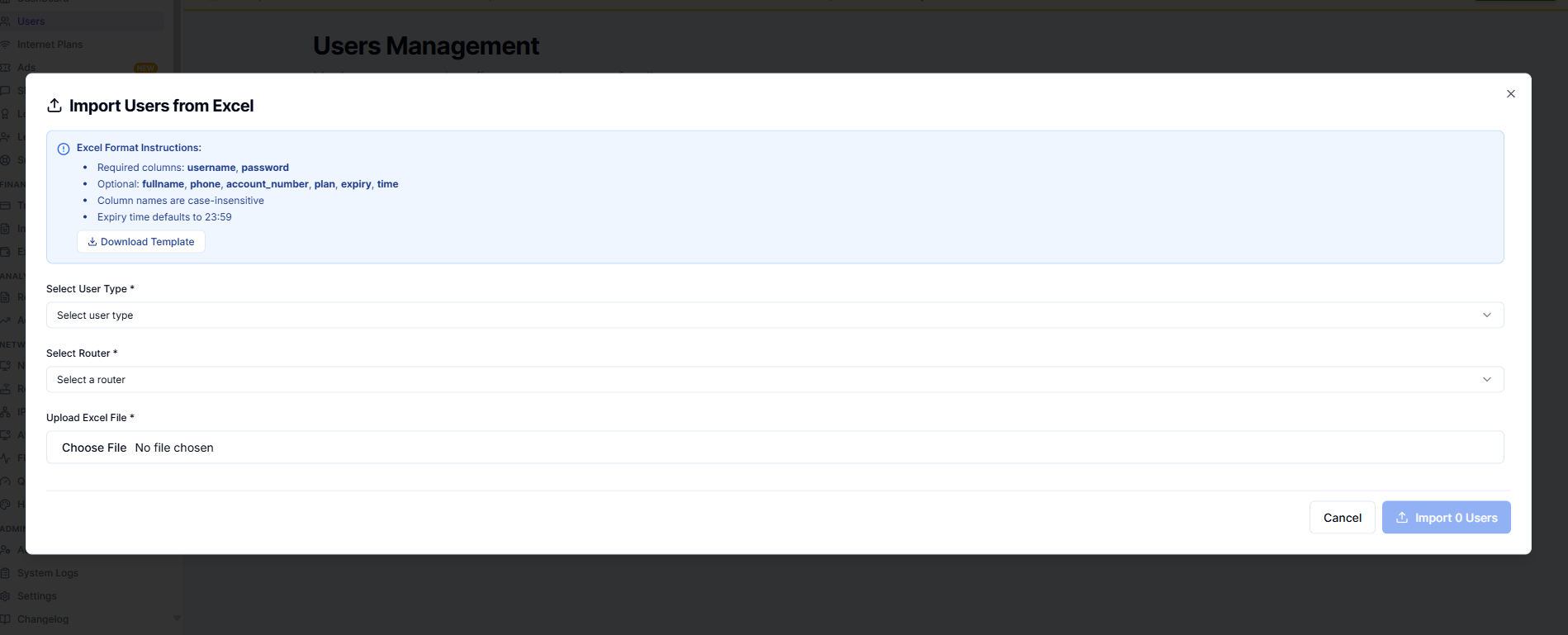
Before uploading, download the official CSV template to make sure your file uses the correct column headers and format.
1. Click **Import**.
2. In the import dialog, click **Download Template**.
3. Open the file in Excel or Google Sheets.
***
## Download the Template
Before uploading, download the official CSV template to make sure your file uses the correct column headers and format.
1. Click **Import**.
2. In the import dialog, click **Download Template**.
3. Open the file in Excel or Google Sheets.
 ***
## Fill in the Template
Fill in one customer per row. Required columns are marked in the template header.
| Column | Required | Notes |
| ----------------- | -------- | ------------------------------------------ |
| `full_name` | Yes | Customer's full name |
| `phone` | Yes | Phone number (07xx or 254xx format) |
| `username` | Yes | Must be unique across all customers |
| `password` | Yes | Plain text — encrypted on save |
| `plan_name` | Yes | Must exactly match an existing plan name |
| `connection_type` | Yes | `pppoe` or `static` |
| `email` | No | Optional email address |
| `ip_address` | No | Leave blank to auto-assign |
| `account_number` | No | Custom account number (for M-Pesa paybill) |
Do not change the column headers in the template. The import will fail if the headers do not match exactly.
***
## Upload and Import
1. Save the completed CSV file.
2. Click **Import** on the user list page.
3. Click **Choose File** and select your CSV.
4. Review the preview table showing the first few rows.
5. If everything looks correct, click **Import**.
***
## Fill in the Template
Fill in one customer per row. Required columns are marked in the template header.
| Column | Required | Notes |
| ----------------- | -------- | ------------------------------------------ |
| `full_name` | Yes | Customer's full name |
| `phone` | Yes | Phone number (07xx or 254xx format) |
| `username` | Yes | Must be unique across all customers |
| `password` | Yes | Plain text — encrypted on save |
| `plan_name` | Yes | Must exactly match an existing plan name |
| `connection_type` | Yes | `pppoe` or `static` |
| `email` | No | Optional email address |
| `ip_address` | No | Leave blank to auto-assign |
| `account_number` | No | Custom account number (for M-Pesa paybill) |
Do not change the column headers in the template. The import will fail if the headers do not match exactly.
***
## Upload and Import
1. Save the completed CSV file.
2. Click **Import** on the user list page.
3. Click **Choose File** and select your CSV.
4. Review the preview table showing the first few rows.
5. If everything looks correct, click **Import**.
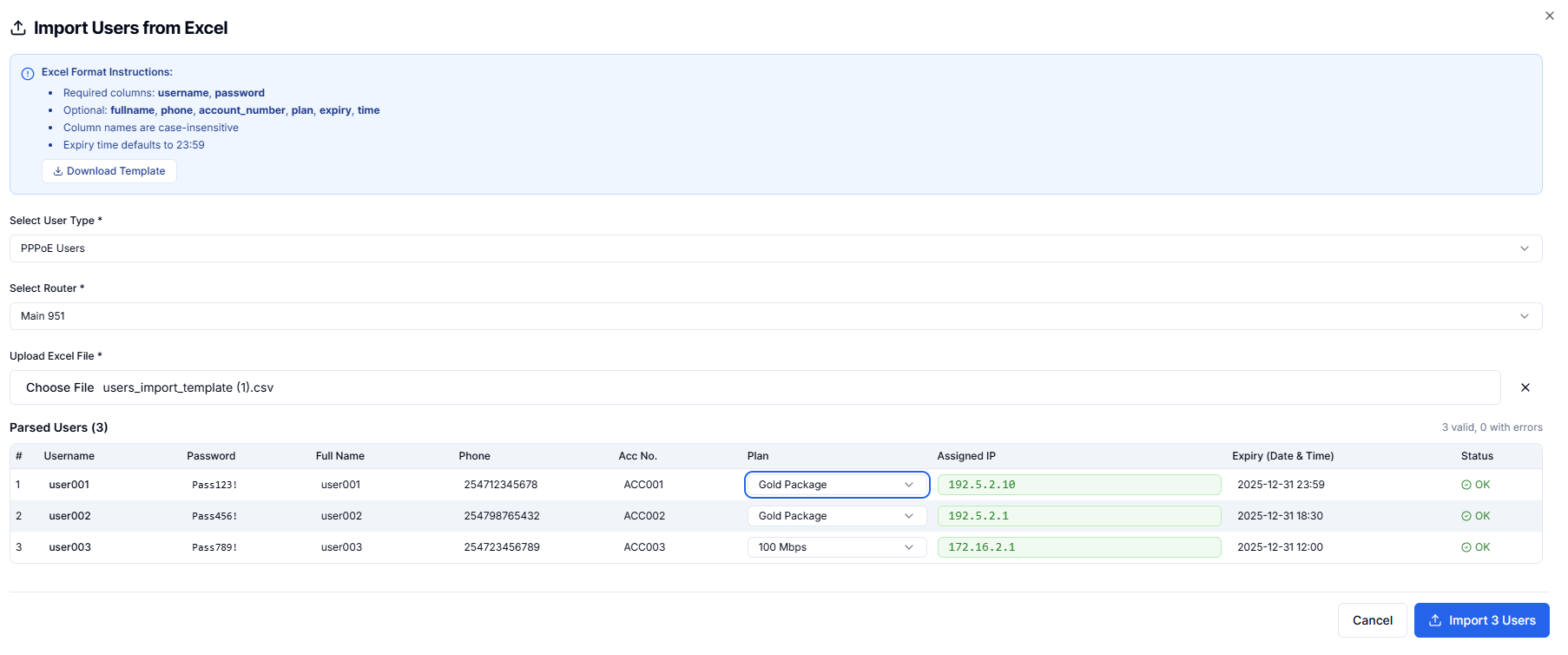 ***
Rows with errors are skipped — the rest still import. Fix errors in your CSV and re-import the failed rows.
***
## Common Import Errors
| Error | Fix |
| ------------------------- | ---------------------------------------------------- |
| "Username already exists" | Change the username to something unique |
| "Plan not found" | Check the plan name matches exactly (case-sensitive) |
| "Invalid phone number" | Use the 07xx or 254xx format |
| "Unknown connection type" | Use lowercase: `pppoe` or `static` |
***
Rows with errors are skipped — the rest still import. Fix errors in your CSV and re-import the failed rows.
***
## Common Import Errors
| Error | Fix |
| ------------------------- | ---------------------------------------------------- |
| "Username already exists" | Change the username to something unique |
| "Plan not found" | Check the plan name matches exactly (case-sensitive) |
| "Invalid phone number" | Use the 07xx or 254xx format |
| "Unknown connection type" | Use lowercase: `pppoe` or `static` |