> ## Documentation Index
> Fetch the complete documentation index at: https://wiki.lipanet.com/llms.txt
> Use this file to discover all available pages before exploring further.
# Create Ad
In Lipanet, you can create ads to advertise your business; the ad can be either an image or a video
The ad has 3 categories
* **Top of page**: This ad displays on top of your page, for all users when buying
* \*\*Before Internet Access: \*\*This is the ad that the user will watch to access the internet. You can set the plan to assign the user after watching
* **Before plans**: This is the Ad that displays on the page and plays before displaying the plans\
\
**How to create Ads**\
On your account, click ads
On the page, click **Create ad**
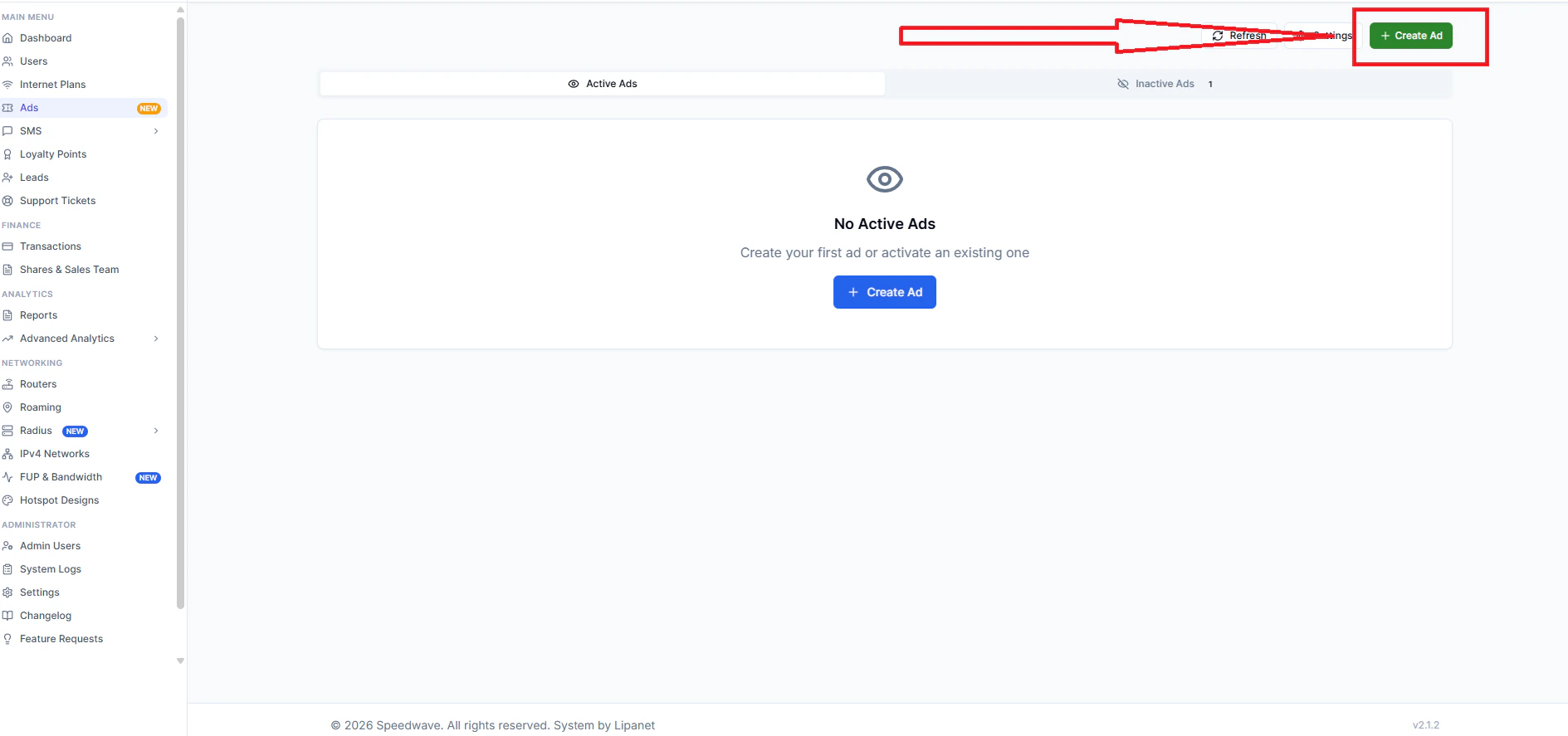 Enter ad details and click " Create ad to upload
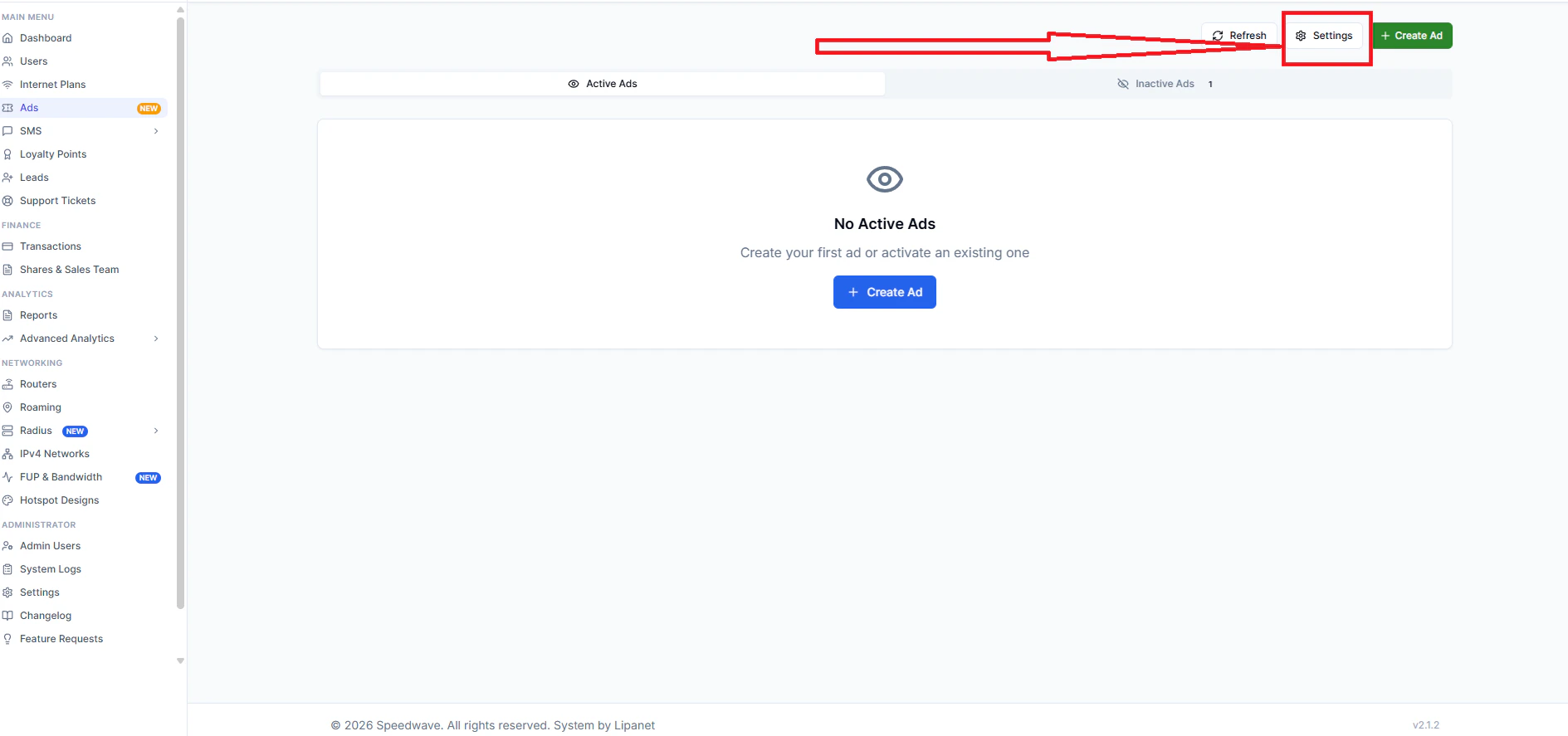 Click settings to set your ad
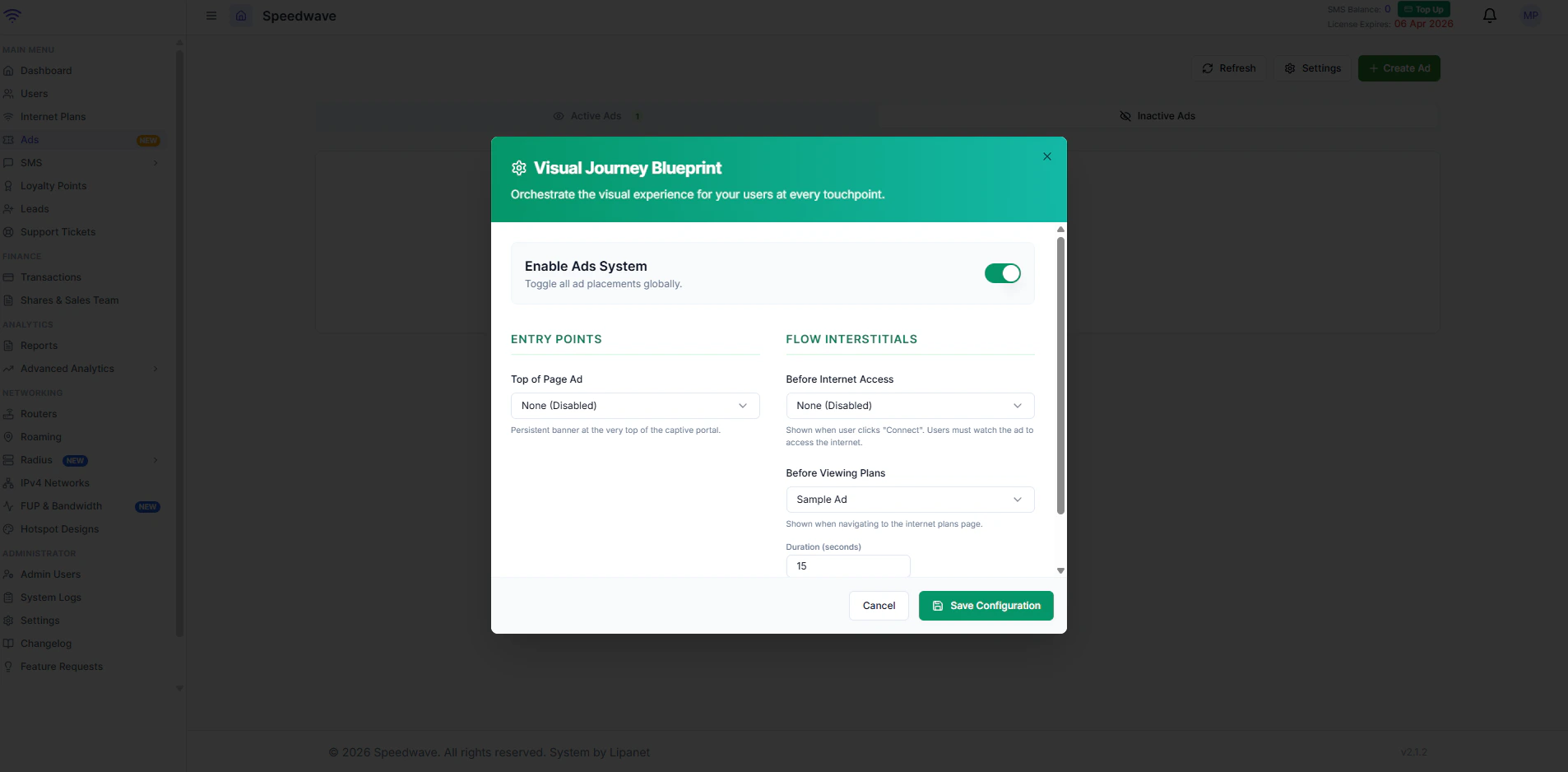 Adjust according to where you want to show the ad, and click " Save configuration