> ## Documentation Index
> Fetch the complete documentation index at: https://wiki.lipanet.com/llms.txt
> Use this file to discover all available pages before exploring further.
# Bandwidth and FUP
> Lipanet gives you more options to manage your bandwidth, from Fair Usage Policy (FUP) to speed bursts and schedulers
## Bandwith
This section allows you to set a specific bandwidth limit on your plans to prevent over-subscription/overuse. In this section, you set your total capacity, then click Add alocation
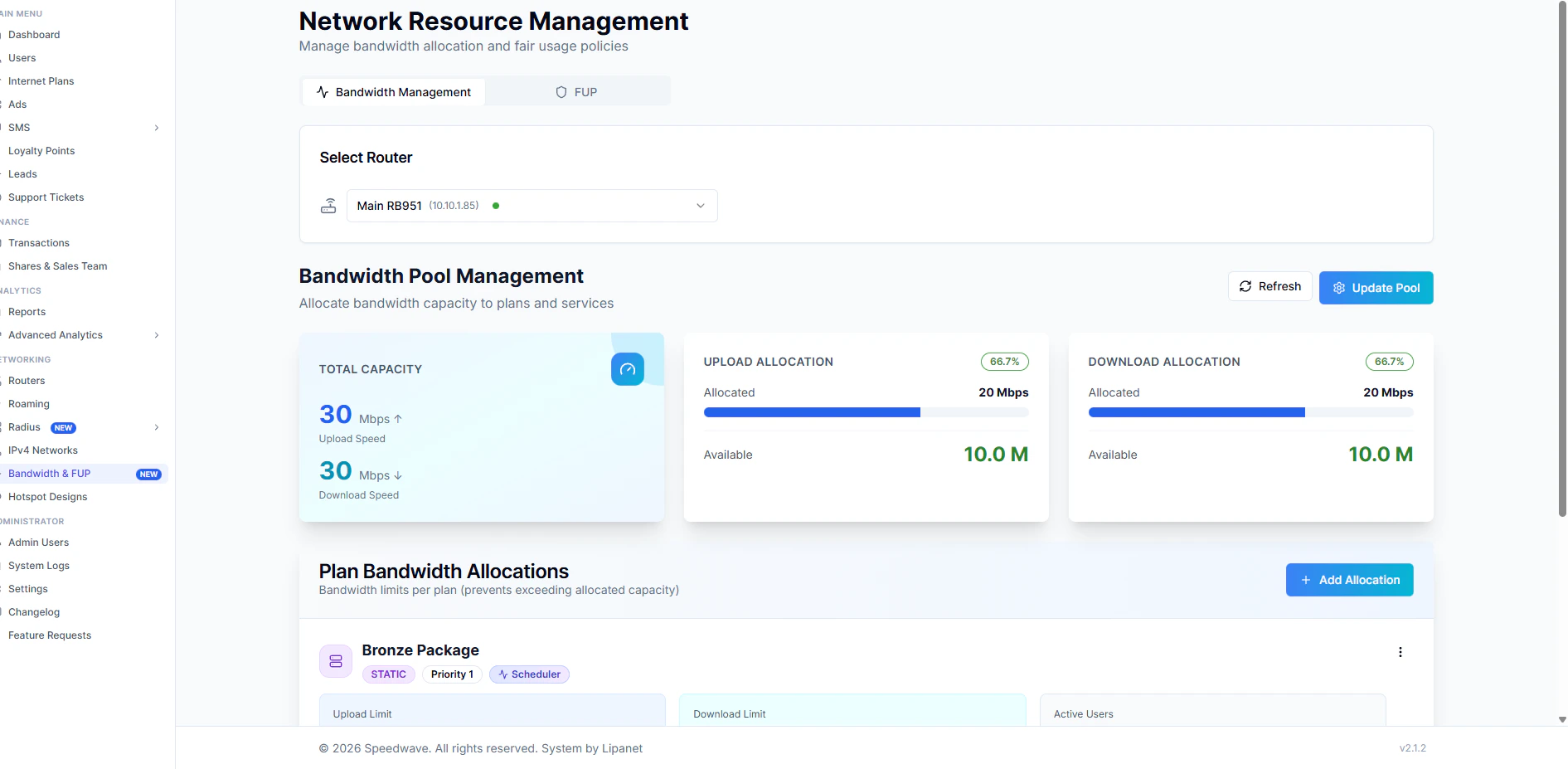
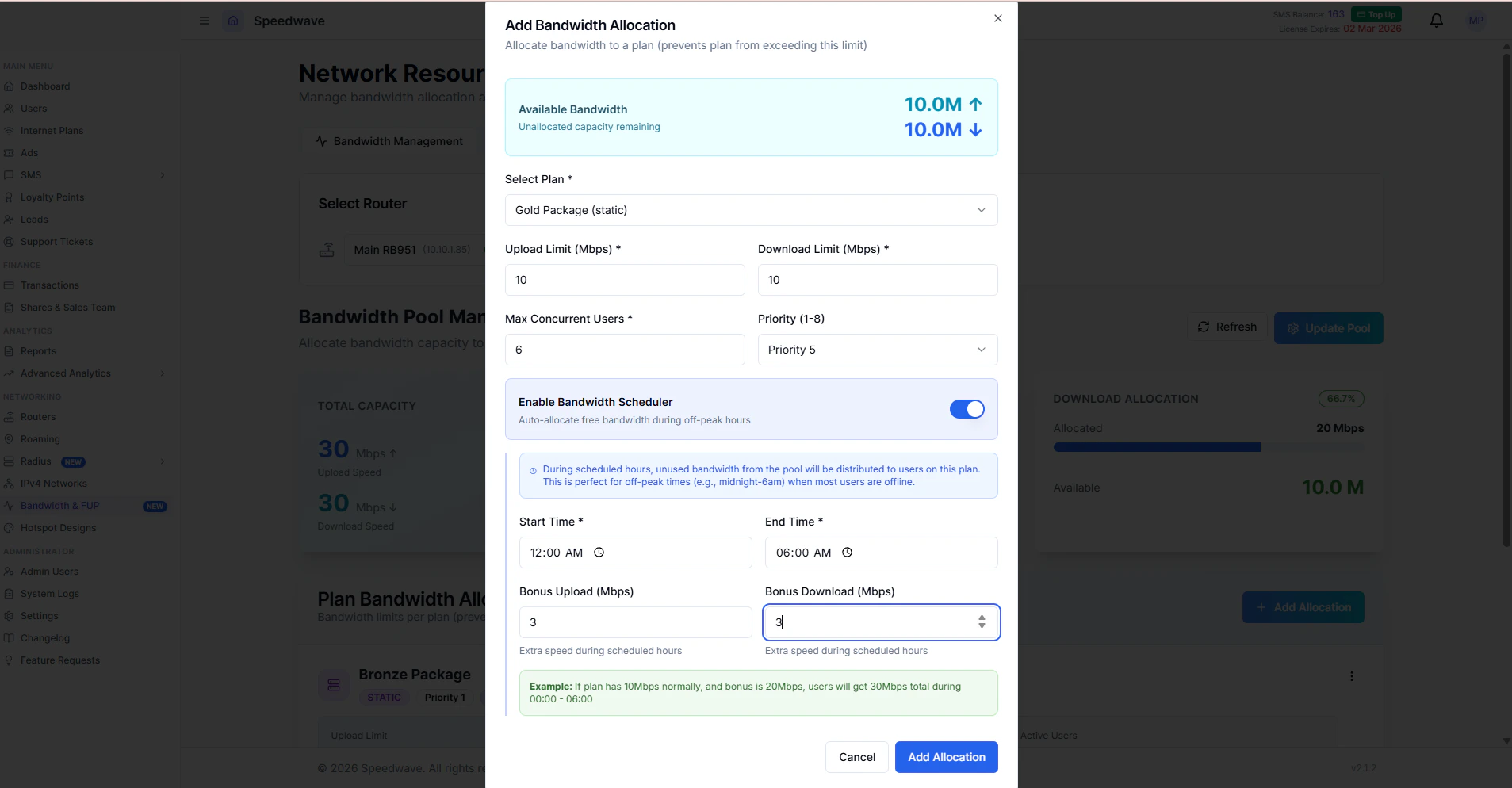 * **Package**: Select the internet package you want to limit
* **Upload limit & Download Limit**: is the total Speed for all users in that plan
* **Max Concurrent Users**: The maximum number of users you are planning to have on that plan
* **Priority:** defines the order in which users are granted internet access when network resources are limited.
A **lower numeric value means higher priority**.
* **Priority 1**: Highest priority. This user is served first.
* **Priority 8**: Lowest priority. This user is served last.
* \*\*Bandwidth scheduler: \*\*The bandwidth scheduler allows you to define time-based burst speeds for users. During a specified time window (for example, **12:00 AM to 6:00 AM**), users can receive higher speeds than their normal allocation.
This feature is recommended when the network has **unused or low-utilization bandwidth** during certain periods.
**How it works**:
* You define a **bonus upload or download value**.
* The bonus speed is **added to the user’s normal speed** during the scheduled time.
* Example:
* User speed: **10 Mbps**
* Bonus speed: **5 Mbps**
* Effective speed during schedule: **15 Mbps**
When the scheduled time ends, all users automatically return to their **original configured speeds**.
### **Fair Usage Policy (FUP)**
Fair Usage Policy (FUP) allows you to control how bandwidth is handled when a user exceeds a defined data usage threshold. It ensures fair distribution of bandwidth and prevents a small number of users from over-consuming network resources.
With FUP enabled, users continue to have internet access after reaching the limit, but at a **reduced speed**.
**How FUP works**:
* You define a **data limit** (for example, monthly usage).
* Once the user reaches this limit, their speed is **throttled** to a predefined FUP speed.
* The reduced speed remains active until the **reset period** (such as the next billing cycle).
**Key FUP parameters**:
* **FUP Limit**: The maximum data a user can consume before FUP is applied.
* **FUP Upload Speed**: Upload speed applied after the limit is reached.
* **FUP Download Speed**: Download speed applied after the limit is reached.
* **Reset Period**: The time when usage counters reset and normal speeds are restored.
**Example**:
* Normal speed: **10 Mbps**
* FUP limit: **100 GB**
* FUP speed after limit: **2 Mbps**
* Result: After consuming 100 GB, the user’s speed is reduced to 2 Mbps until the next reset period.
FUP is recommended for maintaining network stability, especially on shared or high-density plans.
***
## How it is done
On your account, proceed to Bandwith and FUP
* **Package**: Select the internet package you want to limit
* **Upload limit & Download Limit**: is the total Speed for all users in that plan
* **Max Concurrent Users**: The maximum number of users you are planning to have on that plan
* **Priority:** defines the order in which users are granted internet access when network resources are limited.
A **lower numeric value means higher priority**.
* **Priority 1**: Highest priority. This user is served first.
* **Priority 8**: Lowest priority. This user is served last.
* \*\*Bandwidth scheduler: \*\*The bandwidth scheduler allows you to define time-based burst speeds for users. During a specified time window (for example, **12:00 AM to 6:00 AM**), users can receive higher speeds than their normal allocation.
This feature is recommended when the network has **unused or low-utilization bandwidth** during certain periods.
**How it works**:
* You define a **bonus upload or download value**.
* The bonus speed is **added to the user’s normal speed** during the scheduled time.
* Example:
* User speed: **10 Mbps**
* Bonus speed: **5 Mbps**
* Effective speed during schedule: **15 Mbps**
When the scheduled time ends, all users automatically return to their **original configured speeds**.
### **Fair Usage Policy (FUP)**
Fair Usage Policy (FUP) allows you to control how bandwidth is handled when a user exceeds a defined data usage threshold. It ensures fair distribution of bandwidth and prevents a small number of users from over-consuming network resources.
With FUP enabled, users continue to have internet access after reaching the limit, but at a **reduced speed**.
**How FUP works**:
* You define a **data limit** (for example, monthly usage).
* Once the user reaches this limit, their speed is **throttled** to a predefined FUP speed.
* The reduced speed remains active until the **reset period** (such as the next billing cycle).
**Key FUP parameters**:
* **FUP Limit**: The maximum data a user can consume before FUP is applied.
* **FUP Upload Speed**: Upload speed applied after the limit is reached.
* **FUP Download Speed**: Download speed applied after the limit is reached.
* **Reset Period**: The time when usage counters reset and normal speeds are restored.
**Example**:
* Normal speed: **10 Mbps**
* FUP limit: **100 GB**
* FUP speed after limit: **2 Mbps**
* Result: After consuming 100 GB, the user’s speed is reduced to 2 Mbps until the next reset period.
FUP is recommended for maintaining network stability, especially on shared or high-density plans.
***
## How it is done
On your account, proceed to Bandwith and FUP
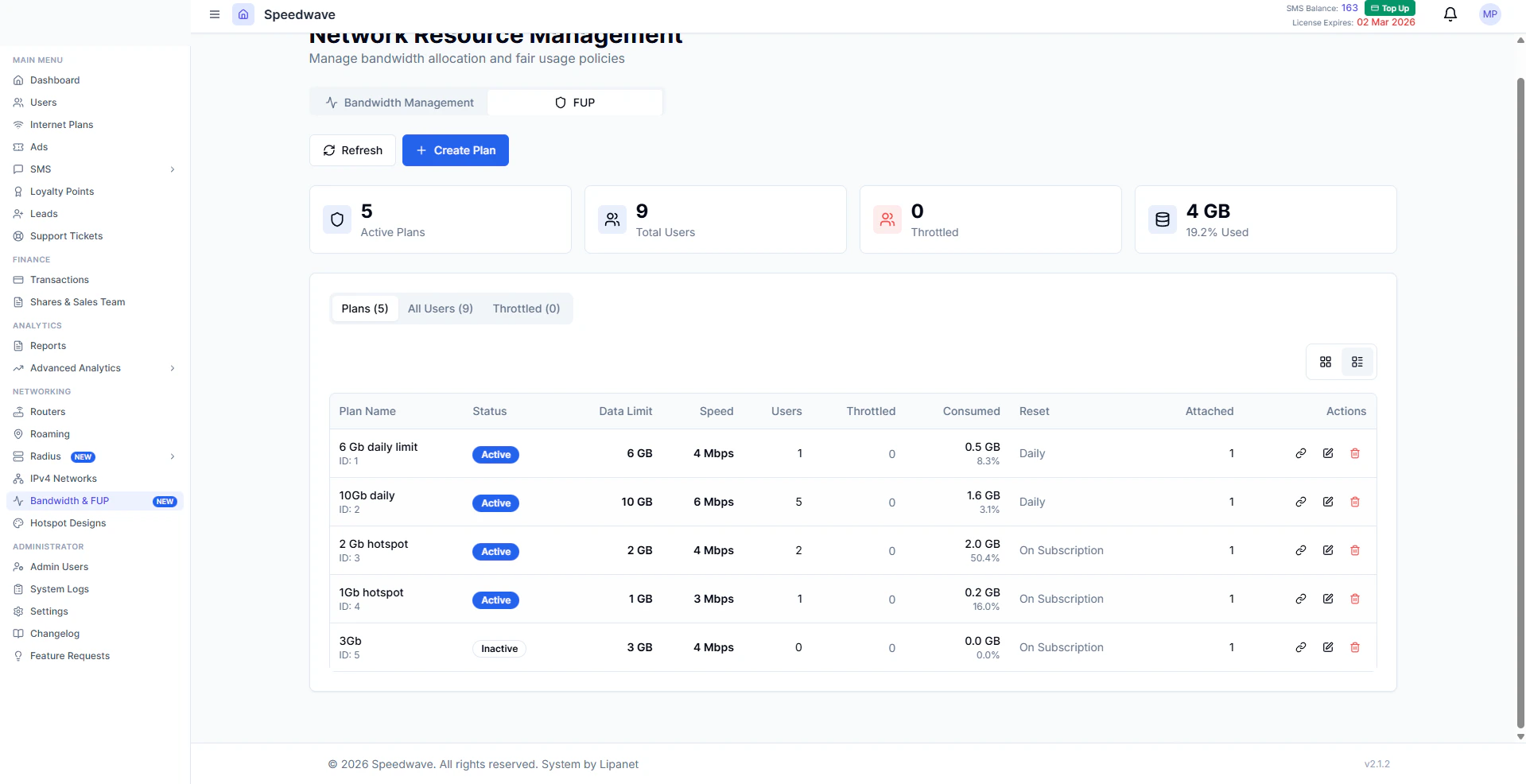 You need to create a plan for FUP,\
Fill in the details on the form
You need to create a plan for FUP,\
Fill in the details on the form
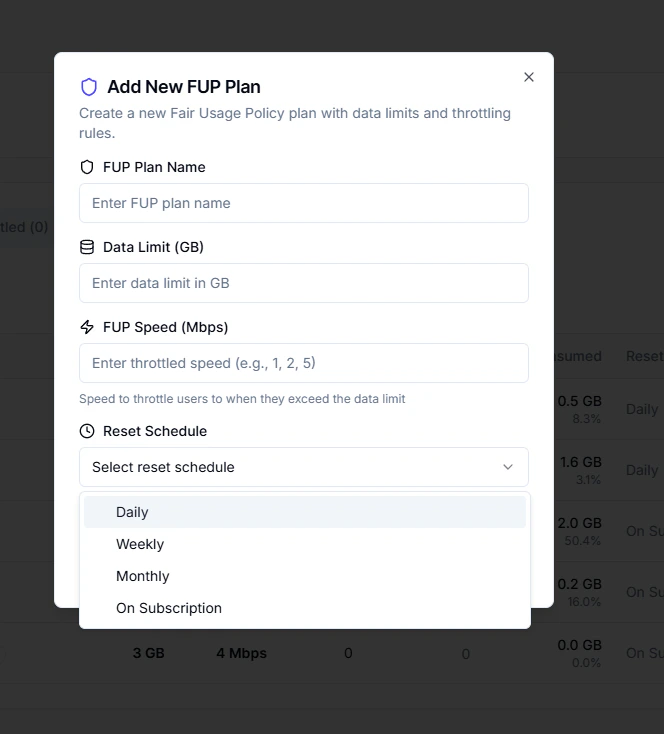 After successfully creating a plan, click the link button on the plan to assign plans
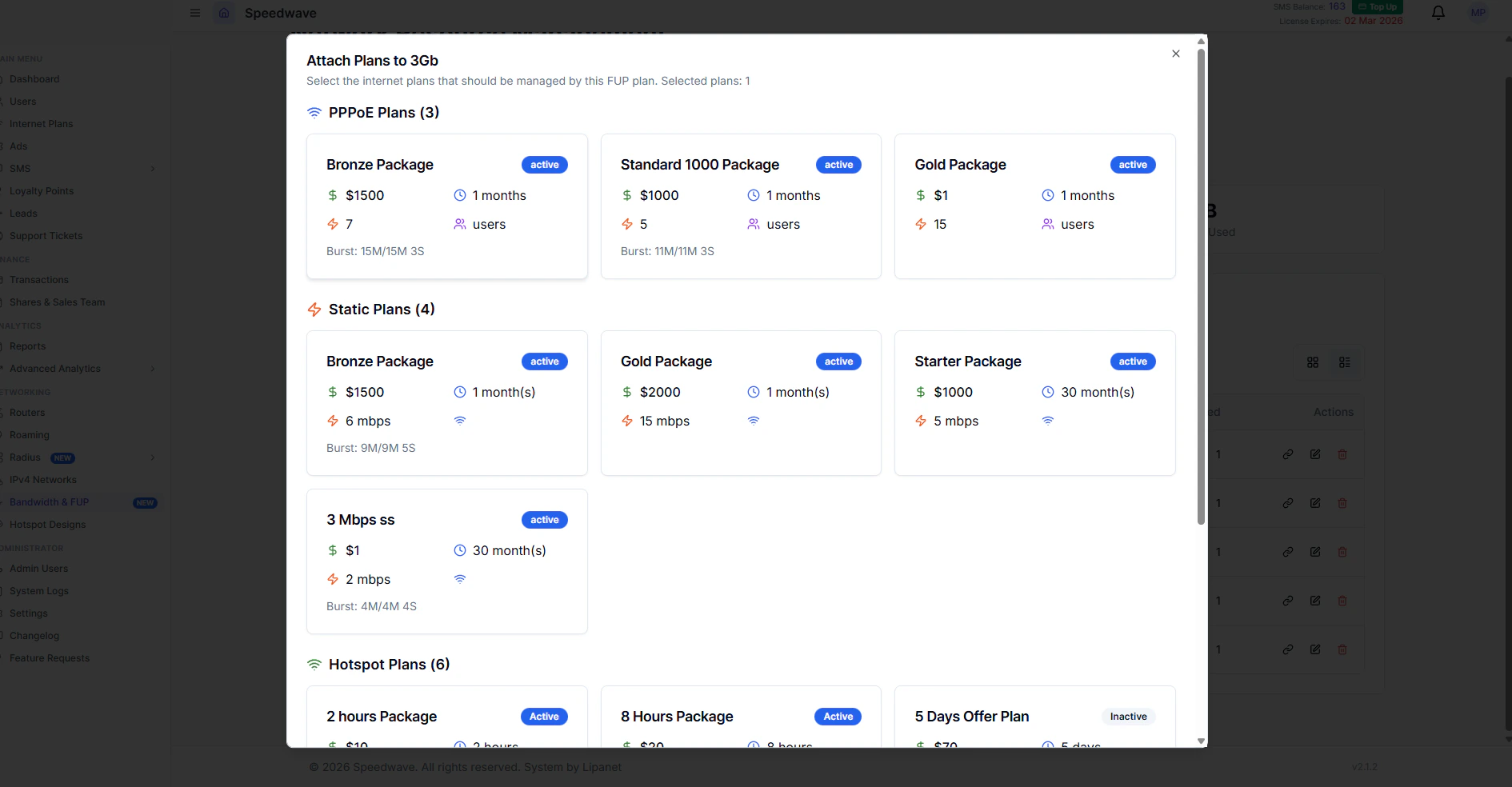 Assign your plans and then click save\
You are done creating FUP plan and assigning plans, those users will now appear on FUP users with their percentage usage
Assign your plans and then click save\
You are done creating FUP plan and assigning plans, those users will now appear on FUP users with their percentage usage